Sell rooms online to guests
People without an account book a room on your space page and pay by card right away. Everything for it is on the page Online booking for guests.
A person without an account picks a room and a time on your space page, confirms their email address with a code and pays by card. Afterwards they manage the booking through a link from the confirmation email. You release nothing and confirm nothing: the purchase is binding right away. Your veto is the release per room and, in a single case, cancelling and refunding.
Everything the sale needs is on the page Online booking for guests. At the top you see whether your space is online. If it is not, every missing point is listed there, each with a link to where you fix it.
These points must be in place before your space sells rooms:
- a connected Stripe account that may accept payments
- a price per hour for rooms in your plan without a contract
- saved guest hours
- terms and conditions and a cancellation policy
- a complete legal notice (Impressum) with company name, seat and contact address
- at least one room that guests can book
In the app
- Open Space settings or Public page and in it Online booking for guests.
- Work through the points listed at the top under Not online yet.
- Under Rooms, release the rooms guests may book and pick the doors a paid booking opens.
Terms, cancellation policy and the code for your website are on the web only.
On the web
- Open Setup and in it Online booking for guests. The room list leads
there too.
Page Online booking for guests with the status at the top and the missing points - Under Prices without a contract, enter the gross price at Room per hour and click Save prices.
- Under Guest hours, check the suggestion, change it where needed and click Use suggestion or Save guest hours.
- Under Rooms, switch on the rooms guests may book. Below, pick the doors a paid booking opens. Without a door, guests read Access by arrangement, and you let them in yourself.
- Once the top says Online, click Copy link and share the link to your space page, for example on your website or in your Google profile.
Embed on your own website
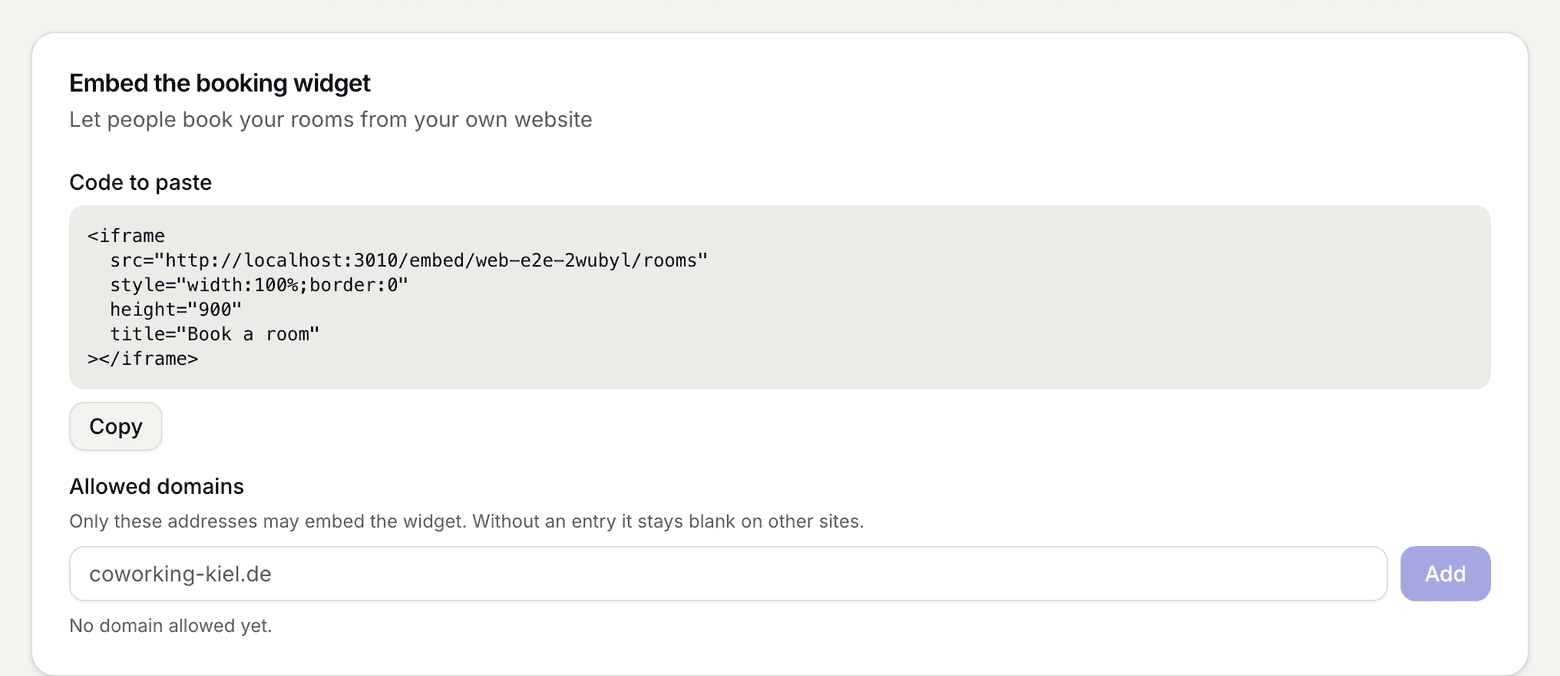
Under Share, open Embed on your own website. There are two codes: one for rooms, one for day tickets. Copy the one you need with Copy code and paste it into your website.
The website from your space details may always show the code; it is listed with the note from your space details. If the code runs on another site, enter its address and click Add. Without the address, the frame stays empty on that site.
What applies here
- The price comes from your plan without a contract, shown gross. The field under Prices without a contract writes to this plan, where the price also applies to members without a contract. Empty or 0 means: no sale. See Gross price.
- Guests have their own hours. Guest hours only apply to people without an account; your opening hours still apply to members. Holidays and closing days apply to both. Until you save guest hours, the space sells nothing to guests.
- Guests have the same booking window as members. See Booking window.
- The slot is blocked from the start of the purchase. An unpaid hold expires on its own. The lists you read only show paid orders.
- Access belongs to the booking, not to an account. The window runs from 15 minutes before the start to 15 minutes after the end, can be used several times, is logged and can be revoked on the booking. See Add doors and set access.
- The guest gets a receipt, not an invoice. It runs in its own number range. The guest always gives name, email and address, the company if they like; all of it is on the receipt. See Receipt and invoice.
- Guests get no profile. They appear as a guest in the day plan and the list of all bookings; in All bookings and in the CSV only once you show guest rows.
- An email tells you about every sale. Nothing waits for an action, but a stranger will be in the building.
- If a room is released but the space is not online, the overview says so under Needs you.
- A list of earlier guest bookings for the member themselves does not exist yet, even though a later sign-up with the same verified address links the orders.
When it does not work