Import members
You upload the list you already have, match columns and plans, and then invite the people on it. Whoever accepts the invitation gets the prepared contract, whatever email address they use.
With the import you bring existing coworkers across without creating accounts for them. Every row waits until the person accepts their invitation. They then get their contract, their billing address, their phone number, the row's desk and its doors and can book.
The import itself sends no email. An invitation only goes out when you press Send invitation or Invite all.
- Open the member list and the import inside it. In the app the button sits in the header; on the web it is called Import.
- Use the list you already have: an export from Cobot or anny, your own spreadsheet or a CSV file. If you have none, use Download template. It holds two more sheets: the valid plan names and the names of your doors.
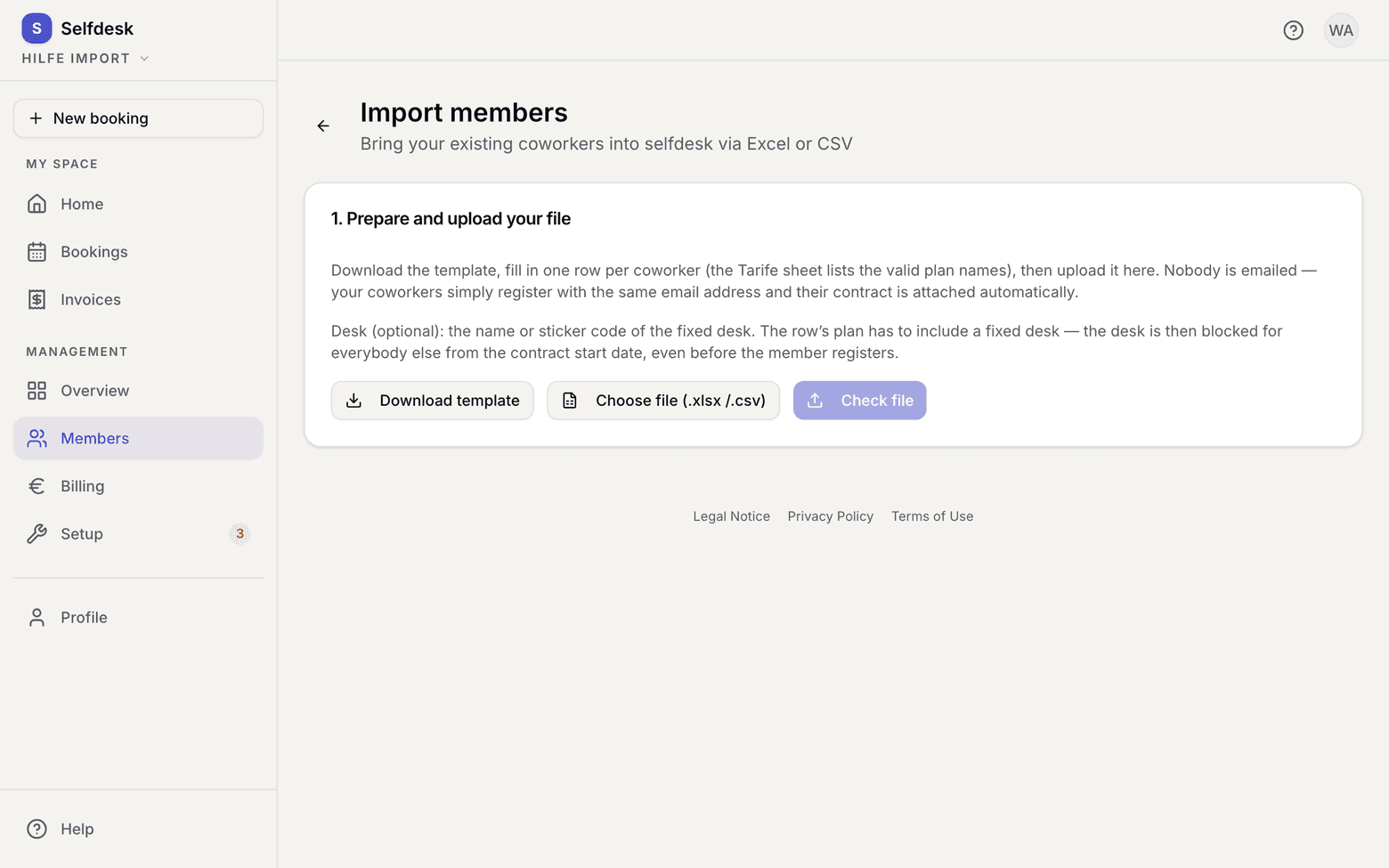
Import page with the button for downloading the template - Pick the file with Choose file (.xlsx / .csv) and then Check file. Selfdesk reads the columns. If every column and every plan name is clear, as with the template, you go straight to the preview in step 6.
- Otherwise, under Match the columns, you give every field a column of your file. Name, email, address, plan and contract start are required. The name comes from one column or from First and last name, the address from street, postcode and city or In one column; Selfdesk then splits it. Please check next to a field means Selfdesk guessed the column from its content. What is still missing shows below the list.
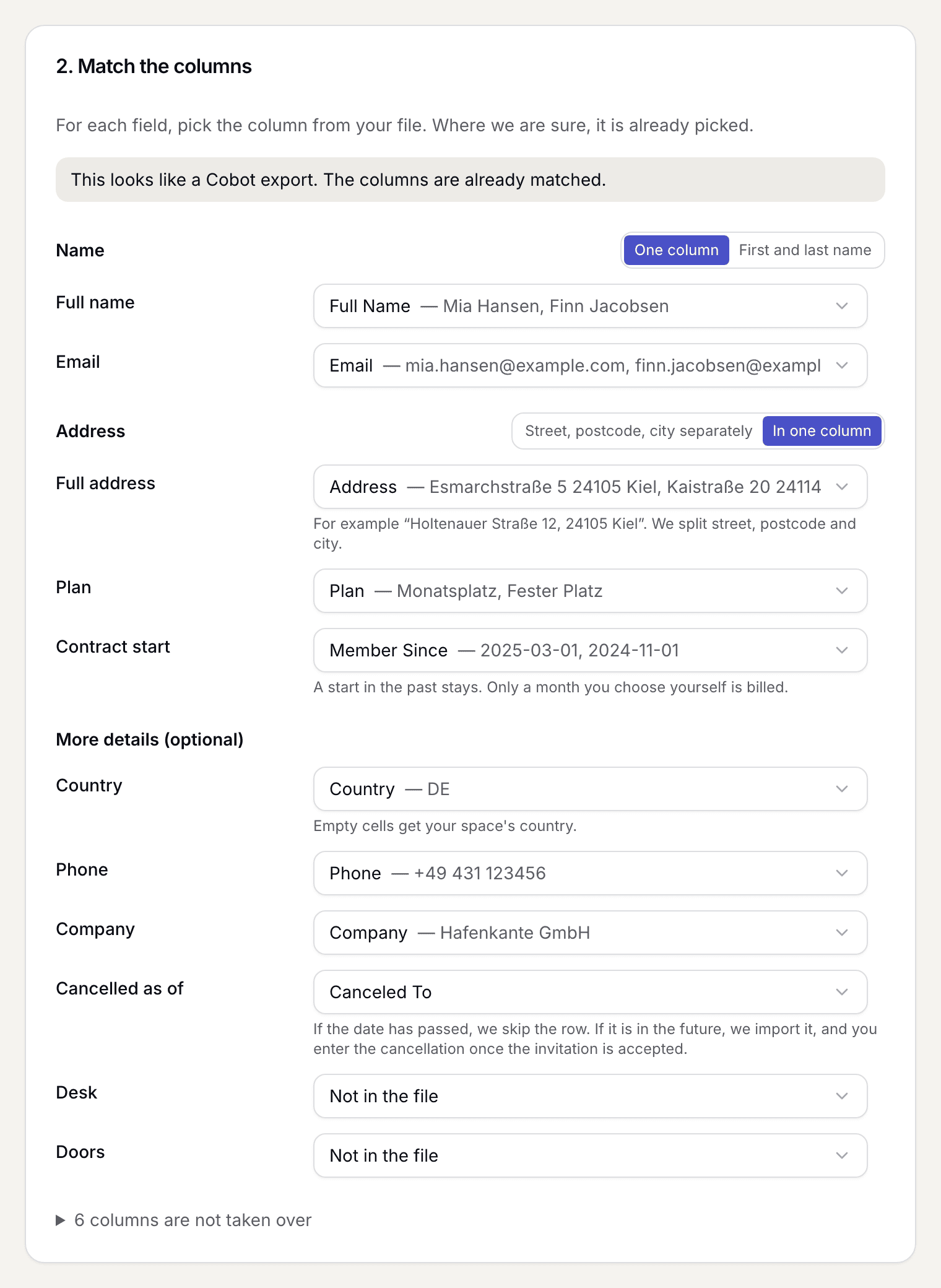
Step Match the columns with a recognised Cobot file - Under Match the plans every plan name from your file appears once, with the number of its rows. Pick a Selfdesk plan for each name or Skip these rows. Several names may point to the same plan. If a plan is missing, create it with Create a plan; on the web this opens a new tab, and Reload plans brings it into the list afterwards. Then Check.
- The preview shows at the top how many rows will be imported, skipped and have errors, and a status per row. Below the name it shows what was read: plan, start and address. If something is off, View matching takes you back without picking the file again.
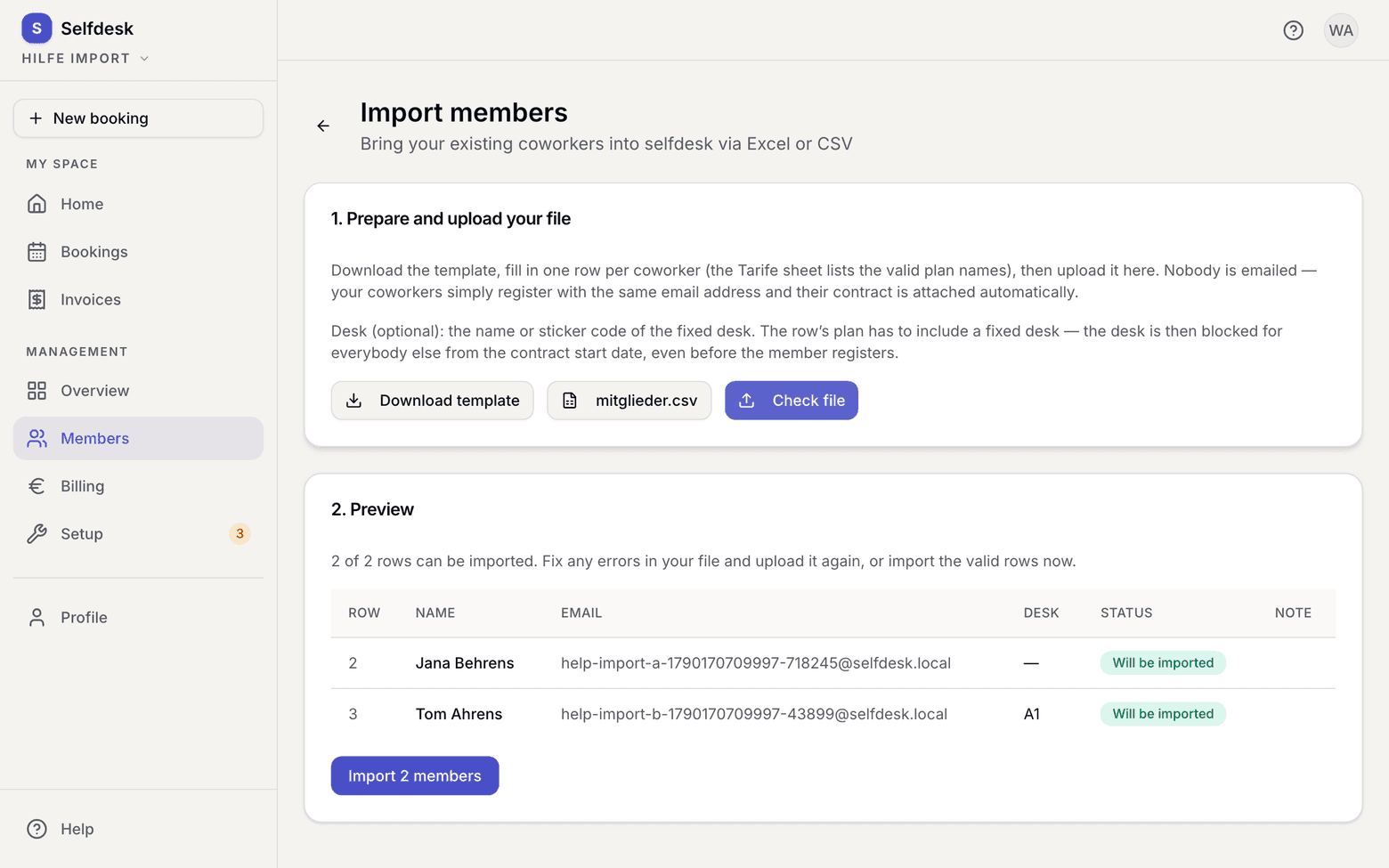
Import preview with a status per row - Fix faulty rows in your file and upload it again, or import only the valid rows for now.
- Confirm the import. The rows then sit in the Imported tab with the status Not accepted yet and the note Not invited.
- Invite the people: Invite all above the list emails every open row without a valid invitation. Before it goes out you can add a note of your own, such as “From November we bill through Selfdesk”, and see the mail as the first person will get it. Anyone who got the invitation by mail and hasn't accepted it is reminded automatically after 3 and after 10 days, twice at most. The switch for it sits above the list. One by one it works from the row: Send invitation, or Copy link (web) / Share link (app) if you'd rather send the link yourself via WhatsApp.
Moving from Cobot
In Cobot, open Manage » Members, choose the filter Current and download the list with the XLSX or CSV button. Upload that file as it is. Selfdesk recognises the export, matches the columns and splits the address that Cobot writes into one cell. You match the plans in step 5.
Name, email, phone, company, address, country, plan, Member Since as the contract start and Internal Notes as the note are taken over. Extras, teams, custom fields, customer numbers, invoices and bookings are not; the invoices stay in Cobot. If someone pays a price other than the plan's, map the Individual price column or enter it in the row's sheet, and the same for add-ons such as a locker. If Canceled To holds a date that has passed, Selfdesk skips the row.
Invoice numbers start afresh in Selfdesk, in the form “RE-2026-00001”. There is no starting value that continues the numbers from Cobot. So that no number appears twice, set your own Invoice number prefix in the legal details, such as “SD-”. Your own prefix is a separate number range; that is allowed as long as every number is issued only once.
Moving from anny
In anny, open Subscriptions, choose the All tab and then Export » All columns, as CSV or Excel. The tab matters: under Active, planned, paused and expired subscriptions are missing from the export. The file is ready to download after a short while. Upload it as it is; Selfdesk recognises it by its layout, even if your anny admin runs in English or another language.
For each subscription, name, email, phone, company, address, plan and start are taken over. The start is the subscription's start, or the start of its trial. The preview shows what anny knows about the subscription:
| In anny | In Selfdesk |
|---|---|
| active or planned | imported; a start in the future stays in the future |
| in a trial | imported, with the note In a trial in anny until … |
| paused | imported, with the note Paused in anny until …. Selfdesk has no pause. |
| cancelled, still running | imported, with the note Cancelled as of …. You enter the cancellation once the invitation is accepted. |
| requested, not yet accepted | imported. When the person accepts the invitation, their contract lands under New contracts, and you decide. |
| expired or rejected | skipped |
If a person has two subscriptions, Selfdesk takes the one that holds today, otherwise the one that starts first. The other is skipped, with a note to enter it after the invitation is accepted.
anny bills every period in advance. Paid in anny until … in the preview tells you from when to bill in Selfdesk; the person has already paid anny for the month before.
anny does not export resources. You create desks in Selfdesk anew, rooms one by one.
Other software and your own lists
Any Excel or CSV file works, as long as one row holds one person. Selfdesk skips title rows above the header, and umlauts survive a CSV file saved by Excel on Windows. Selfdesk does not read the old Excel extension .xls; save the file as .xlsx in Excel. Exports from Nexudus or OfficeRnD you match by hand in step 4.
What the invitation says
The email carries your space's name as sender, and replies go to your contact address. It holds an Accept invitation button and an eight-character code for the app. The button always opens the browser: the person signs in, checks their details from your list and agrees to the contract terms. Anyone who would rather start in the app enters the code there.
The invitation goes to the account it is accepted with, even if that account carries another address than your list, for example with Apple's "Hide My Email". The row then reads Accepted by with the name and the sign-in method.
What applies here
- An imported member is not a member yet. While the row is open there is no profile and no credentials, and it does not count in the Active list.
- A contract start in the past is taken as historical truth. Nothing is recalculated retroactively.
- Before the import, Selfdesk asks from which month Selfdesk bills. The next month is suggested, because the previous system has usually billed the current one already. Selfdesk does not bill the months before, not even in the month-end run. In the chosen month Selfdesk bills every member’s base fee, imported members included. Once the first invoices are issued, this month is fixed.
- Every plan name in the file needs a Selfdesk plan or Skip these rows. Until then Check stays locked; Selfdesk never sets a default plan.
- The date format holds for the whole column. If it is not clear, as with 03/04/2025, Selfdesk asks once whether the day or the month comes first.
- If the Country column is empty or not matched, the row gets your space's country.
- A membership whose cancellation date has passed is skipped. If the date lies in the future, the row is imported, and you enter the cancellation once the invitation is accepted.
- If the row names a desk, that desk is blocked for everybody else from the contract start date, months before the person first signs in. The row's plan has to include a fixed desk.
- You can change the desk of an open row on its own, without uploading the whole list again.
- Individual price is what the person pays for their plan, gross: the base fee on a monthly plan, the price per day on a day plan. If it is the plan's price, the plan's price stays. The invitation shows the agreed price, and the contract runs at it from the start, like an individual price on the member.
- You name add-ons as they are called in Selfdesk, several separated by commas. They are booked on acceptance, from the month of the contract start, but never for a past month. An unknown name makes the row an error.
- The note stays on the row and is in the member list CSV. The person does not see it.
- You change price, add-ons and note of an open row in its sheet under Price and add-ons.
- On a plan without a base fee the contract start may stay empty. The contract then begins on the day the person accepts.
- When someone accepts their invitation, you get the New member notification, as with every signup.
- The person gets the doors from the row when they accept the invitation or you link the row to their account. They can open from the contract start.
allmeans the doors that exist at upload; a door added later is not included by itself. - A door name that does not exist in Selfdesk makes the row an error. An empty cell in the doors column takes the row's doors away; a file without that column leaves them as they are.
- You change the doors of an open row on the Imported tab: on the web through the Doors column or the row's menu (Set doors), in the app in the row's sheet.
- Link and code are valid for 30 days and only once. A new invitation does not cancel older ones. Once one expires the row reads Invitation expired, and Invite all sends a new one.
- Anyone who signs up without an invitation using the same email address gets the row, as before. If the row already has a valid invitation, this does not apply; the invitation counts.
- The member cannot move or withdraw the prepared contract themselves; the app asks them to let you know. You change it in the member's record, see Move or withdraw a contract before it begins.
- If somebody picked a plan themselves that has not begun yet, the prepared one replaces it, and the row shows a note. If their own contract is already running, it stays, and the row becomes Signed up separately.
- If somebody already signed up with another address, link the row to that account with Link to an account. Only accounts that know your space and hold no running contract here are offered.
- A row you revoke becomes Revoked. Its invitations stop working.
- Imported contracts need no approval. Your upload is the approval. The exception: a subscription that was still requested and not accepted in anny. Its contract waits under New contracts.
- Everybody has to accept the legal texts themselves. With an invitation that happens when accepting it, after Link to an account on first entry.
When it does not work