Review and approve applications
New sign-ups wait under Open applications until you approve them. You can also let that happen automatically.
Whoever signs up in your space creates a contract by doing so. By default it waits for your approval. Only after that can the person book.
- When an application is waiting, it shows under Needs you: in the app at the top of Manage, on the web on the Overview. Tap or click the row.
- Open applications opens with every application that is waiting right now. From the member list, the button with the count at the top right leads there too. Button and row only exist while something is open.
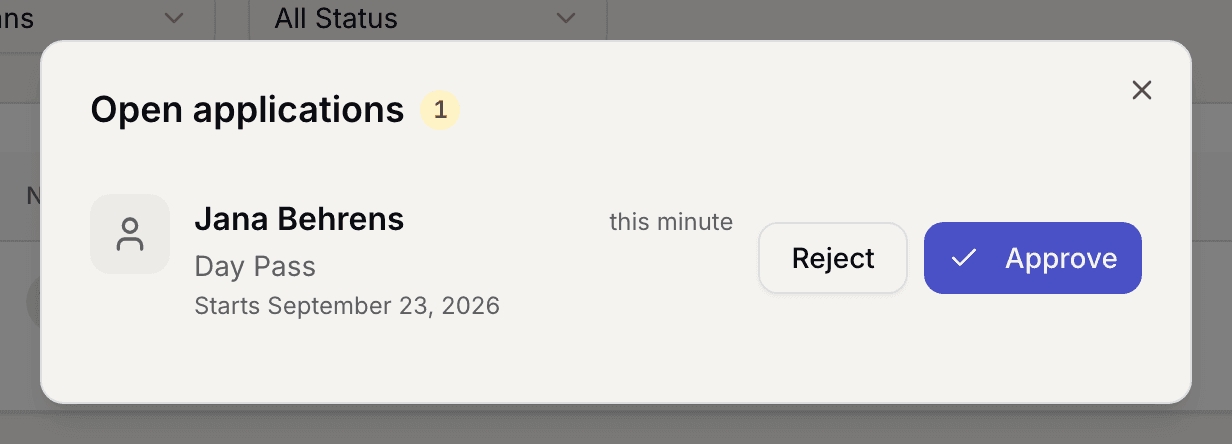
Open applications with one waiting application - Each row names the person, the requested plan with its price, the requested start date under Starts and when the application came in.
- Tap or click Approve. The contract becomes active and the requested start date applies unchanged. Once nothing is left open, the list closes by itself.
- If it does not fit, pick Reject. You can send a reason with it. The member is notified and can apply again later. Back returns you to the list without rejecting.
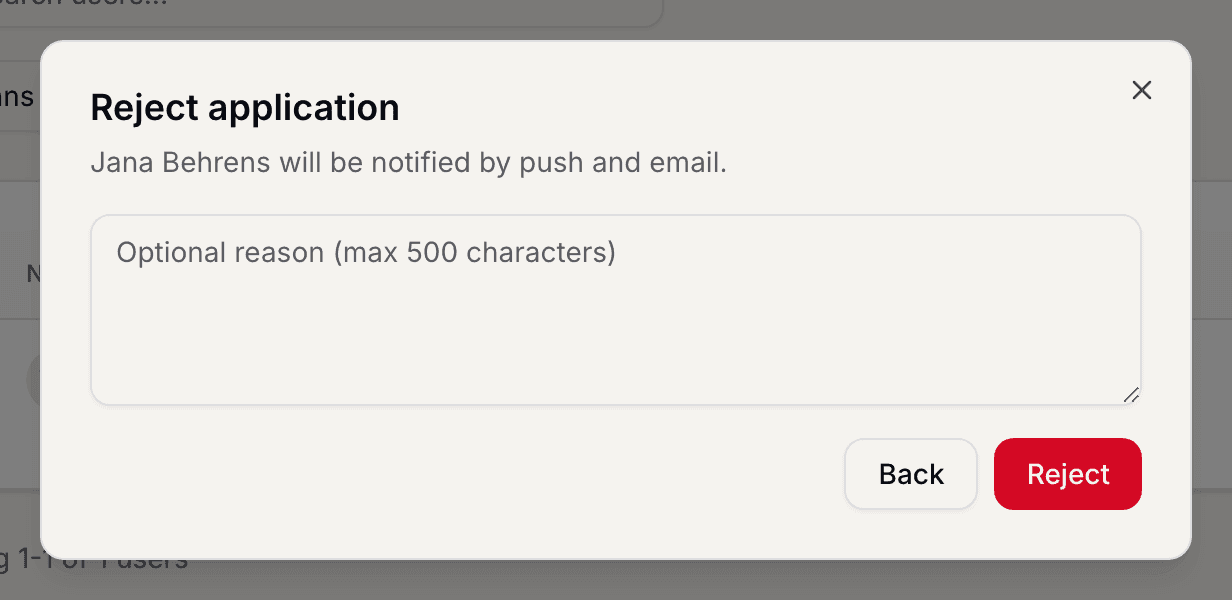
Rejecting an application with the reason field
If you close Open applications, nothing changes. You can carry on later.
If you do not want to approve at all, switch automatic approval on:
- Open the workspace settings. In the app Setup leads there through Presence and Public page; on the web the page sits under Settings and Workspace.
- Flip the switch Anmeldungen automatisch bestätigen (approve sign-ups automatically). It takes effect immediately, without saving.

The switch for confirming sign-ups automatically
What applies here
- Approval takes the start date exactly as the member asked for it, even a date in the past. There is no way to approve and shift the date. If the date does not fit, reject.
- There is no cap on new members. One more paying member raises your next selfdesk invoice by one unit; nothing is blocked.
- Rejected applications are not gone. They sit in the Past tab once you switch on Show rejected.
- Members you create yourself or import from a list need no approval. Your upload is the approval. See Import members.
- An approved contract that starts in the future sits in the Upcoming tab.
When it does not work