Create and publish your space
A new space is created in the browser. It goes public only once four start tasks are done.
You create a space with a wizard. After that, four start tasks decide whether it may go public: desks, a plan, the Impressum and payments.
Before you start: you need the name of your space, the number of desks you have, at least one price and the details for your Impressum.
- Open selfdesk in a browser and start Create space. A new space can only be created on a computer, not in the app.
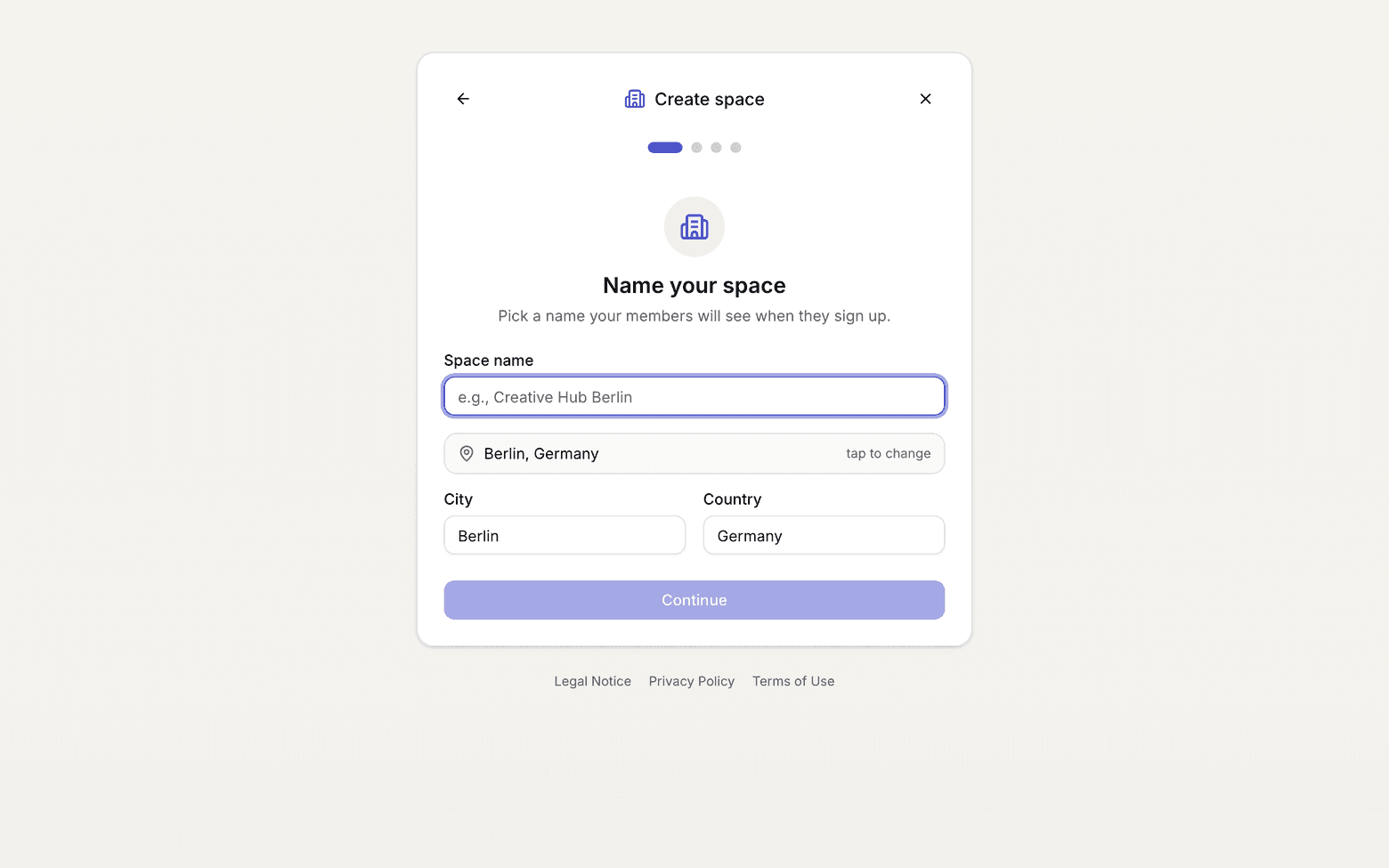
First wizard step with the name field - Step Name your space: enter the name, the city and the country.
- Step Your space: enter how many desks you have, which plans you sell, whether you rent out meeting rooms and when you are open. The amounts that are filled in are suggestions, not a default the app keeps calculating with later.
- Step Legal details (Impressum): enter the legal entity, the address and a contact address.
- Step Payment method: add the payment method for your selfdesk subscription.
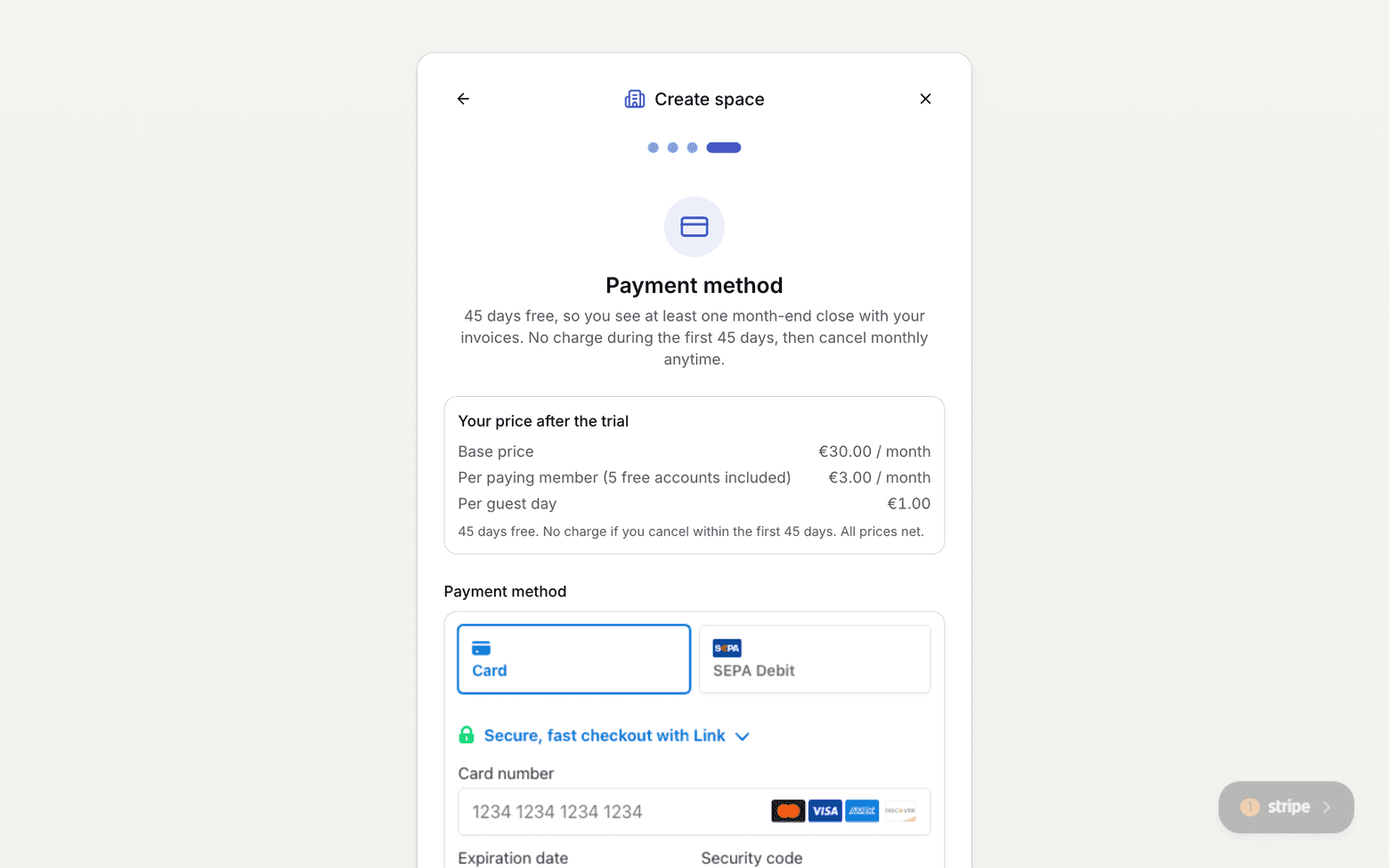
Fourth wizard step with the payment form - If the connection to Stripe is still missing at the end, the wizard finishes in draft state. The button Connect payments takes you to the last open start task.
- Open Setup and work through the open start tasks: Add desks, Set your first plan, Fill in the Impressum, Connect payments. In the app Setup sits in the Manage tab, on the web in the sidebar under Management.
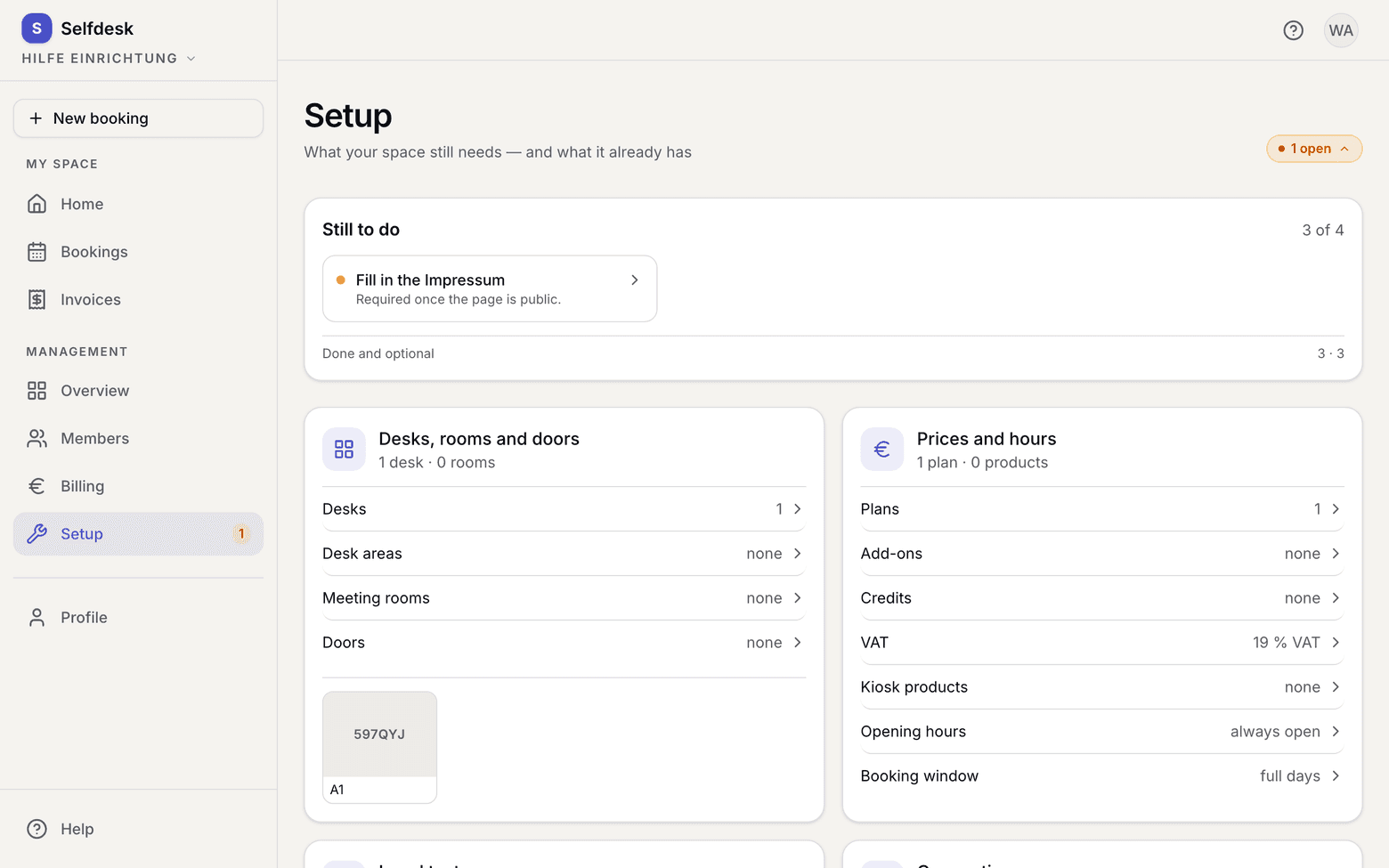
Task list in the draft state with the marker in the top right - Once all four are done, the marker reads ready to go and the list holds only Publish your space. That row leads to Public page.
- Flip the switch there. Members can sign up and book after that.

The Public page card with its switch
What applies here
- There is no separate publish button. The last task leads to the switch you also use later to take the space off the net. See Start task, suggestion, inventory.
- Connect payments counts as done as soon as you have submitted the Stripe onboarding. You can only collect once Stripe has approved your account. See Connect Stripe.
- While the space is public, its page is listed in the app's search and in the list selfdesk hands to Google. It usually takes a few days to show up on Google.
- Switching Public page off again removes the page from the directory and, the next time Google fetches it, from the search results. Existing contracts and bookings stay.
- The order of the four start tasks is up to you. All that is counted is how many of the four are done. See Start task, suggestion, inventory.
When it does not work