Plan a price change
A new price can apply from a future month. Until then the previous one applies. You decide whether it applies to everyone, to everyone who agrees, or to new members only.
You plan a price the same way you change one. The difference is the month: if you pick a future billing month in step 1, the previous price applies until then. The price list names the new price right away together with its month, for example “from December 2026”.
- Open the plan or room, enter the new values and choose Next. See Change a price.
- Under From which billing month does the price apply? choose a future month. Later … shows more months.
- Choose Next and, under Who does the new price apply to?, one of the three options. Below each one it says what it means for the members on this plan.
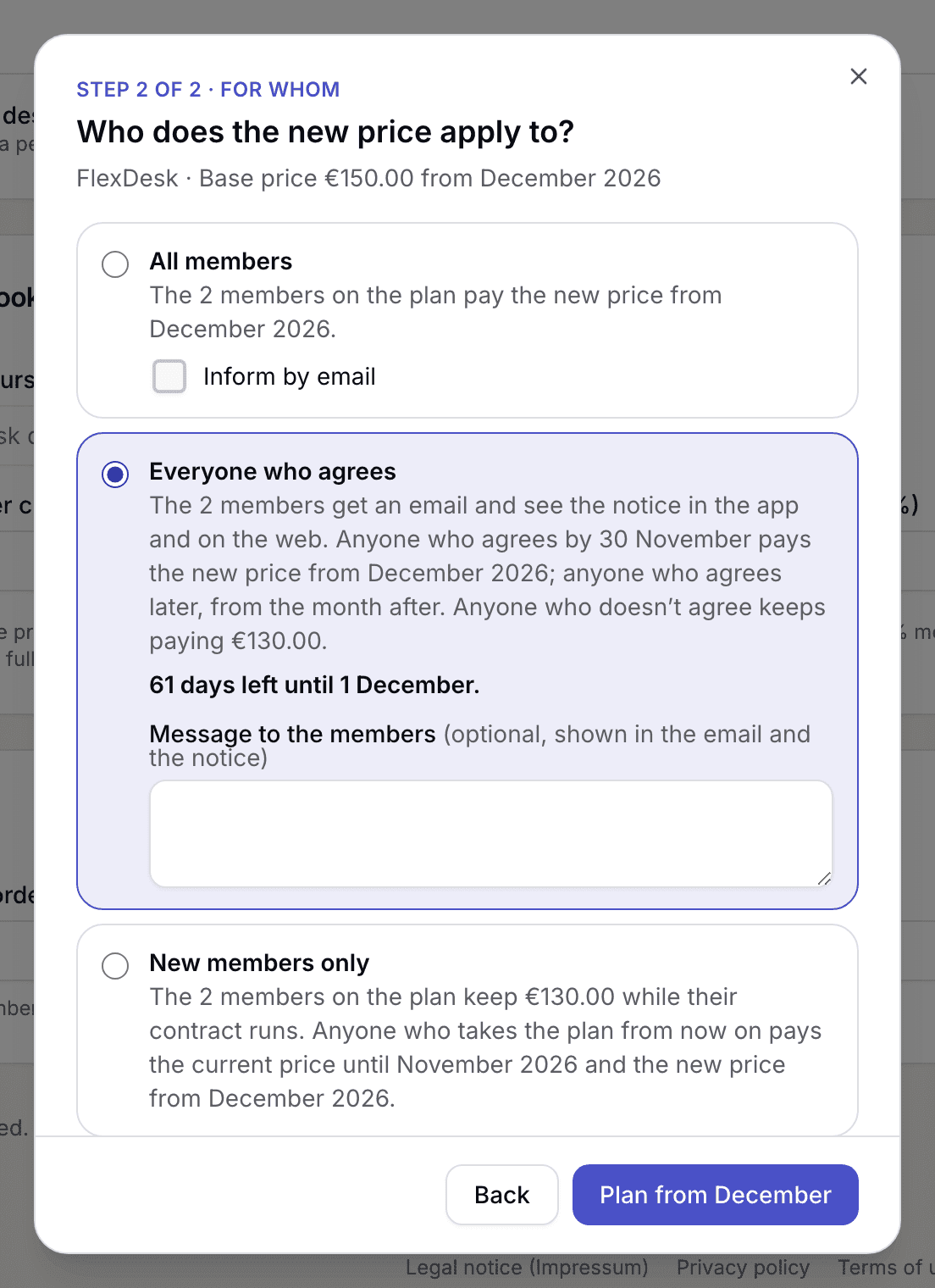
Step 2 with the three options for who the new price applies to - If you like, enter a Message to the members. It appears in the email and in the notice in the app and on the web.
- Enter the Reason and confirm with Plan from ….
The planned price then shows in the plan's header under Planned, in the plan list with its month and, if you ask for agreement, with the state of the agreements.

Who it applies to
| Choice | What it triggers |
|---|---|
| All members | From the chosen month everyone pays the new price. With Inform by email, those affected get an email. |
| Everyone who agrees | Those affected get an email and see a notice in the app and on the web until they have agreed. Whoever agrees before the month starts pays the new price from the chosen month. Whoever agrees later pays it from the month after agreeing. Whoever does not agree keeps paying the previous price. |
| New members only | Whoever holds the plan today keeps paying the previous price as long as their contract on this plan runs. Whoever takes it out from now on pays the previous price until the chosen month and the new price after that. |
For a plan, everyone who holds it is affected. That includes running contracts, contracts starting in the future and contracts still waiting for your approval. Open invitations and import rows not yet redeemed do not count: whoever redeems them pays the price in force then. For a room it is the members whose plan does not make rooms entirely free.
For a plan that is not public, the step does not ask. The price then applies to everyone who holds it.
Change or withdraw a planned price
- Change in the plan's header fills the form with the planned values. After Next, the new entry replaces the planned one in one go.
- Withdraw takes the planned price back. The dialog says which price applies instead and offers an email to those affected. The price list gets a new version without the announced price.
- Both only work until the month has started. After that the price has taken effect, and any further change is a new entry.
- Agreements to a withdrawn or replaced price become void.
What applies here
- If the chosen month is not in the future, Everyone who agrees can still be chosen. Nothing applies retroactively then: the new price applies to each member from the month after they agree.
- Whoever does not agree is not locked out. They keep booking and pay the previous price. See Collect agreement to new prices.
- The previous price only applies as long as a member holds the plan without a break. Whoever leaves the plan and comes back later pays the new price.
- For a company, the billing contact agrees for the whole company.
- Which choice is right for your contracts is your decision. Selfdesk only shows what each choice triggers.
- A price planned for later stays in place when you enter another price before it. Step 1 tells you from when it applies again.
When it does not work