Manage room bookings and series
You see series dates in the day plan, the booking history and the series list, cancel single dates, end whole series, and switch series off per space.
Members book rooms themselves, as single bookings or as a series. Your role is oversight: see who holds which room when, cancel in individual cases, and decide whether series are allowed in your space at all.
In the app
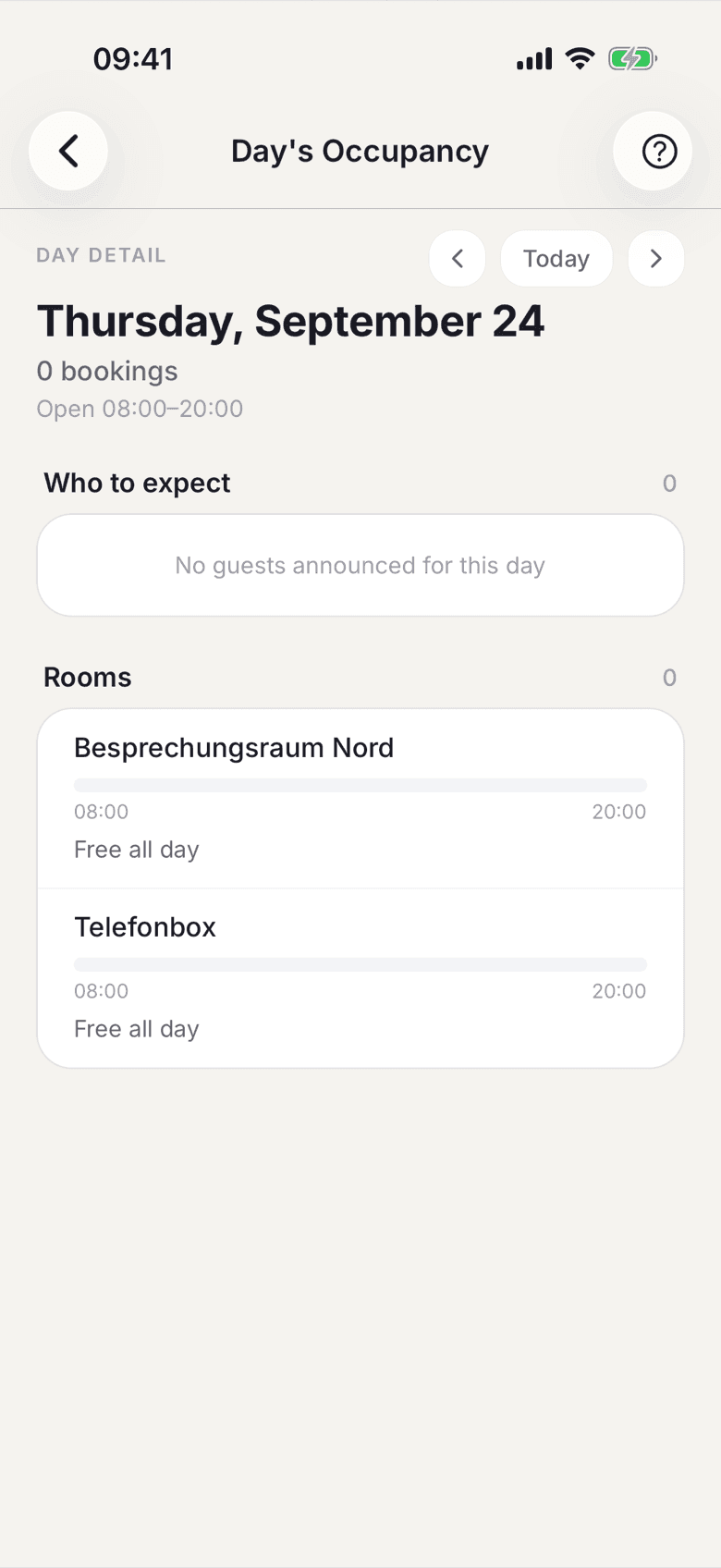
- Open Manage and tap View roster under Today. Previous day
and Next day move you through the days.
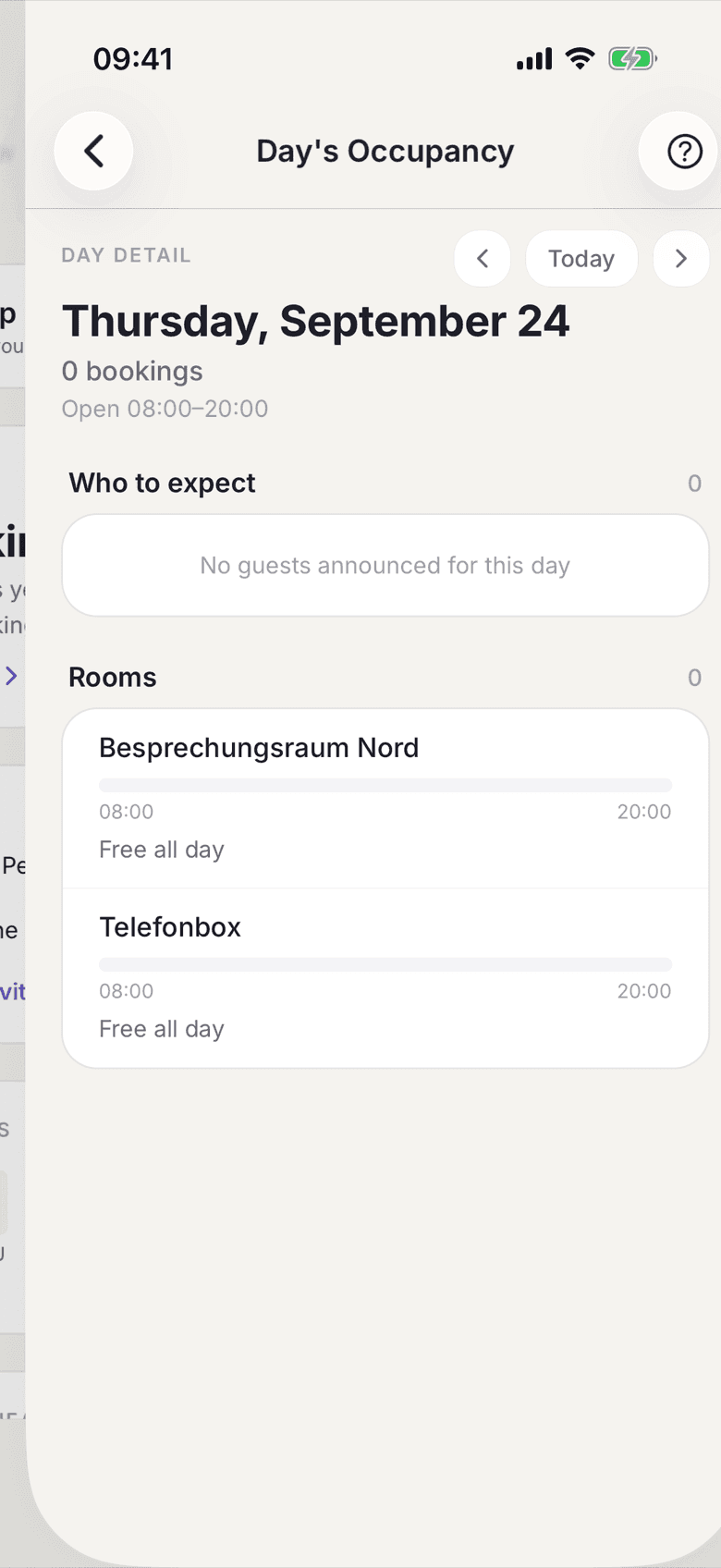
Day Detail with the room lane and its bookings - Series dates carry the repeat symbol in the room lane. Tap one. The sheet
names the Member, the rule as Series · … until … and the number of
upcoming dates.
Sheet for a series date with the two cancel buttons - Choose Cancel this booking or Cancel entire series. Below it says that the member gets an email with a calendar update.
- For an overview of a period open All Bookings. There you filter by range and kind, show cancelled rows with Show cancellations, and pass the list on with Share as CSV.
- To switch series off: open the opening hours, go to the section Rooms
and turn off Allow recurring bookings.
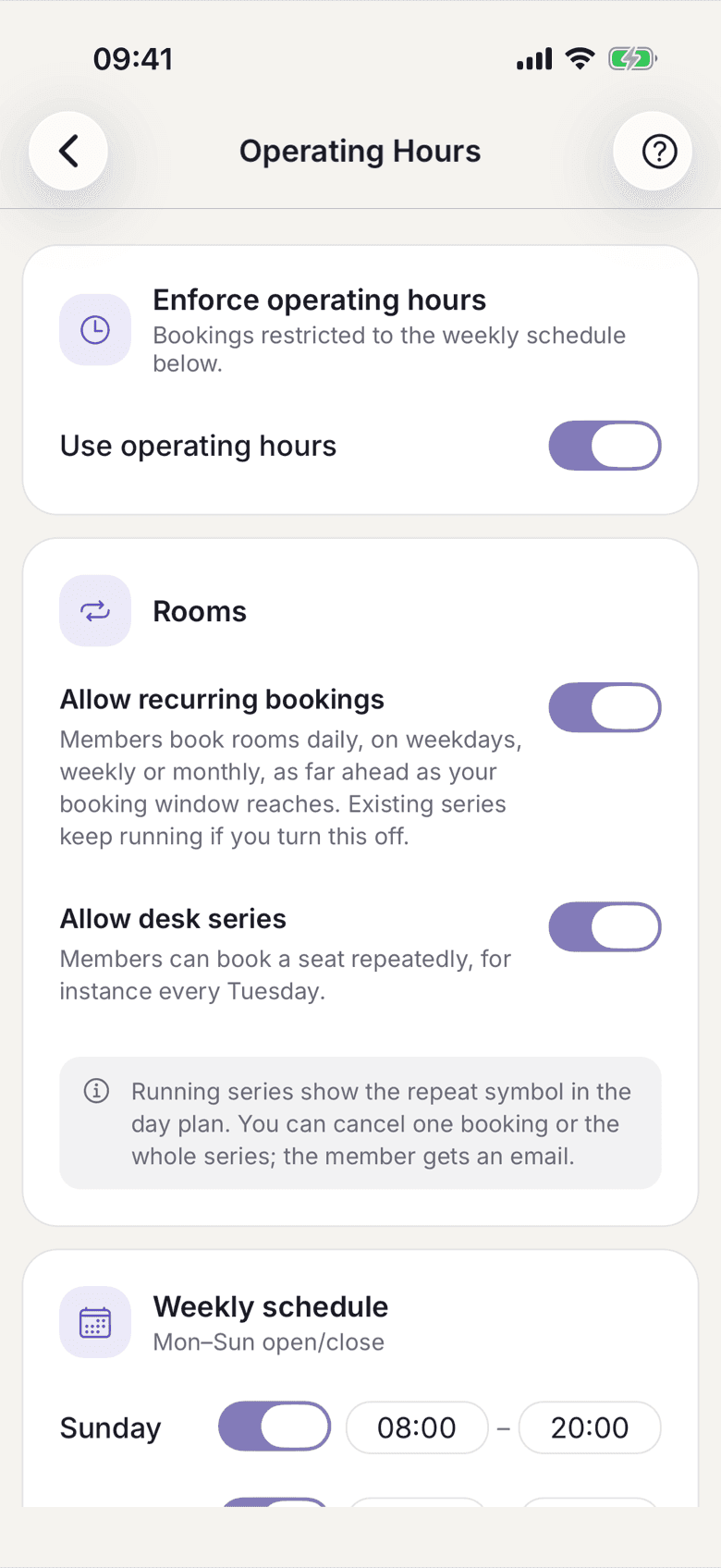
Rooms card with the Allow recurring bookings switch - All running series, desks and rooms together: open Setup, then in Presence the row Public page, and below Booking window tap Recurring bookings. Whoever holds the most occurrences is at the top.
- To end a series, tap the cross in its row. You choose whether every coming occurrence goes or the series ends after a particular one. The member gets the cancellation by email, with a calendar update, and in the app.
On the web
- Open Today and a day inside it. Series dates are marked.
- Click a date. The dialog offers Cancel this date, Cancel this and all following and Cancel whole series, each with a confirmation step.
- For an overview open All Bookings. The page is called Booking History, series rows carry a series marker, and Export as CSV passes the list on.
- To switch series off: open Booking slots in the settings and turn off Allow recurring bookings in the Room series card.
The option Cancel this and all following exists only on the web. In the app you cancel one date or the whole series.
What applies here
- If you switch series off, existing series keep running. The switch applies to newly created ones.
- A series never reaches beyond the booking window. See Booking window.
- The contract end caps the series. At creation the end moves to the contract end, and if the contract ends later, the series stops there.
- Taken and closed dates are skipped, never overbooked. The member sees that in the preview before booking.
- If a member changes a single date, it becomes an exception. It keeps its time even when the series as a whole is moved later.
- Past and running dates always stay. They are invoiced.
- Extending or shortening a room booking runs through Edit. The start stays fixed, the end can be moved to the next quarter hour at the earliest. Room times run on a 15-minute grid.
- The list of all series exists in the app only so far. On the web you see series in the day plan and in the booking history.
- Ending a member's series costs the member nothing. Occurrences that are under way or past stay.
When it does not work