Assign roles
A role decides who may manage. It has nothing to do with the contract somebody holds.
A role says who may manage your space. It is independent of whether somebody holds a contract. You assign it in the member record.
Before you start: role and contract are two separate things. Whoever gets a role without a contract sees the management screens but no member screens. See Member and Manage.
- Open the member list and the person who should get a role.
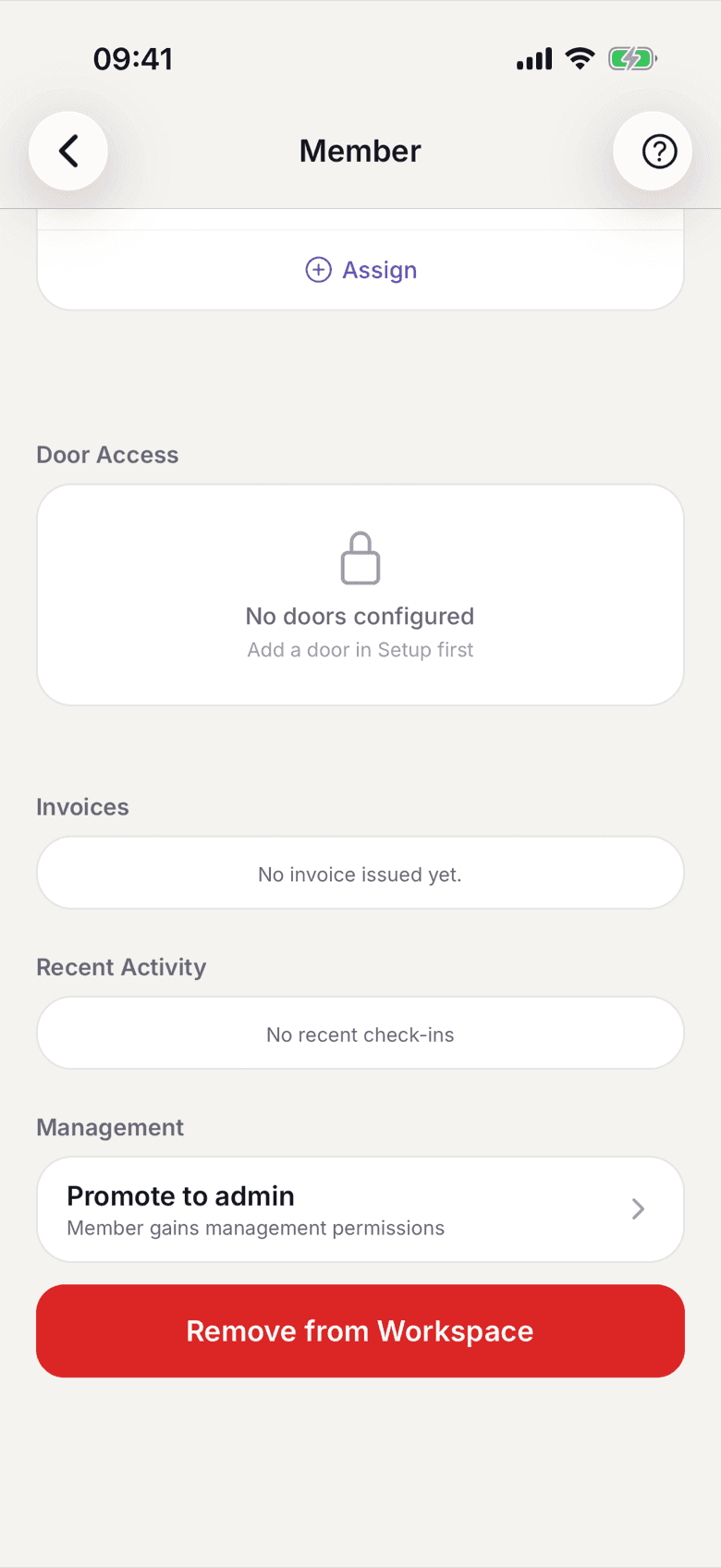
Member record with the Management section - Tap Promote to admin in the Management section. Underneath it reads Member gains management permissions.
- Confirm the prompt. It names what the role may do: manage members, contracts
and workspace settings.
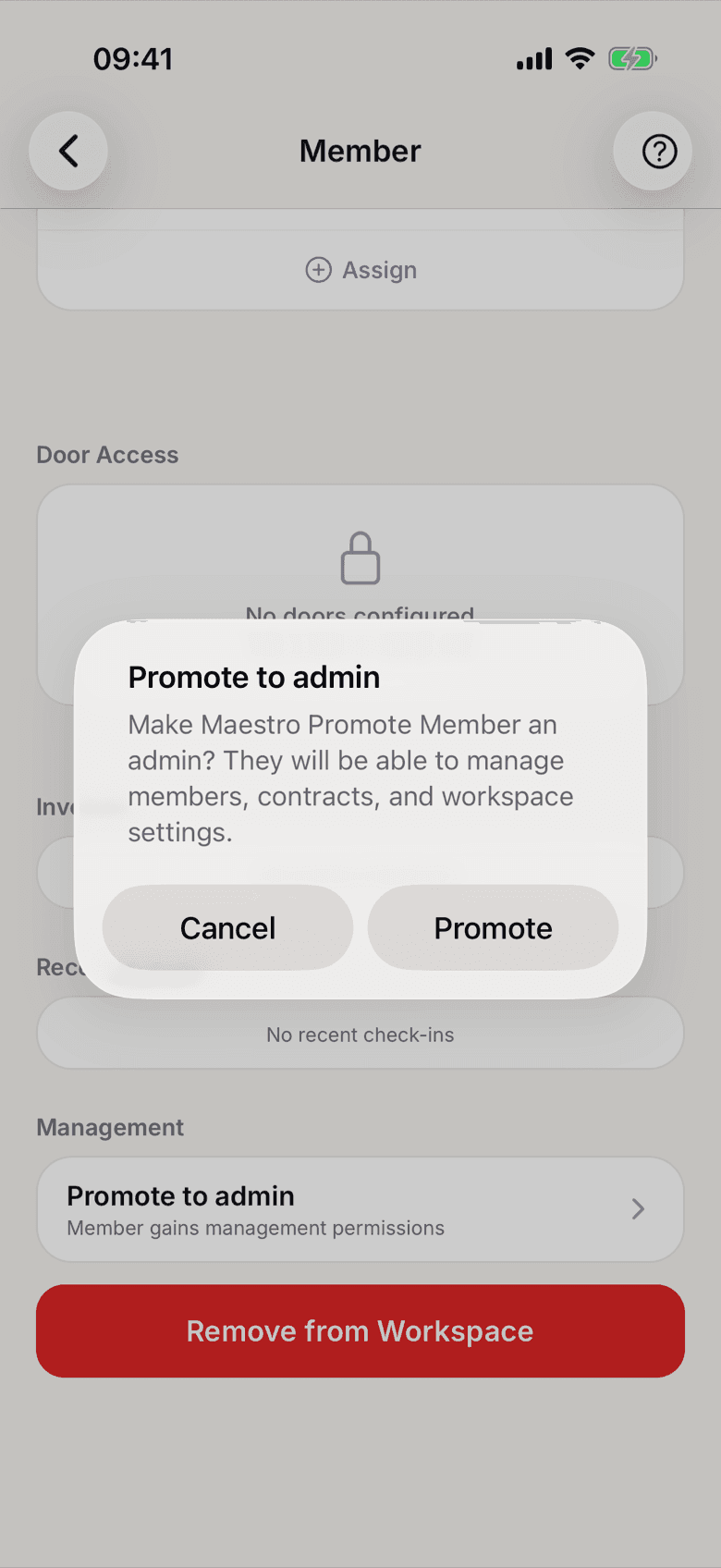
Confirmation before promoting to admin - To take it back, tap Revoke admin role. The membership stays, only the management permissions go.
- If somebody should leave the space entirely, use Remove from Workspace.
What applies here
- There is exactly one owner per space. That role cannot be revoked, only transferred. See The owner role cannot be changed.
- You cannot revoke your own admin role. Somebody else with a management role has to do it.
- A role change takes effect at once. No new sign-in is needed.
- The role does not decide door access. You grant that per member and per door. See Add doors and set access.
- Remove a member from the space and their door log rows are deleted.
- A platform admin is something else. That is a role at selfdesk itself, not a role in your space, and it cannot be handed out.
When it does not work