Review and confirm new contracts
New contracts wait under New contracts until you confirm them. You can also let that happen automatically.
Whoever signs up in your space creates a contract by doing so. By default it waits for your approval. Only after that can the person book. Sign-ups on the plan without a base fee are confirmed at once from the start; you change that per plan (see below).
- When a contract is waiting, it shows under Needs you: in the app at the top of Manage, on the web on the Overview. Tap or click the row.
- New contracts opens with every contract that is waiting right now. From the member list, the button with the count at the top right leads there too. Button and row only exist while something is open.
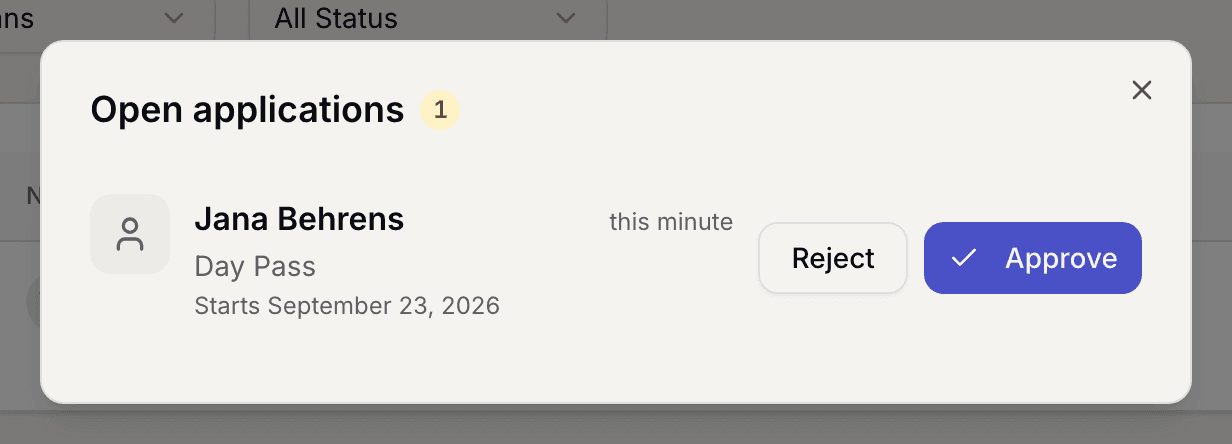
New contracts with one waiting contract - Each row names the person, the requested plan with its price, the requested start date under Starts and when the contract came in.
- Tap or click Approve. The contract becomes active and the requested start date applies unchanged. Once nothing is left open, the list closes by itself.
- If it does not fit, pick Reject. You can send a reason with it. The member is notified and can apply again later. Back returns you to the list without rejecting.
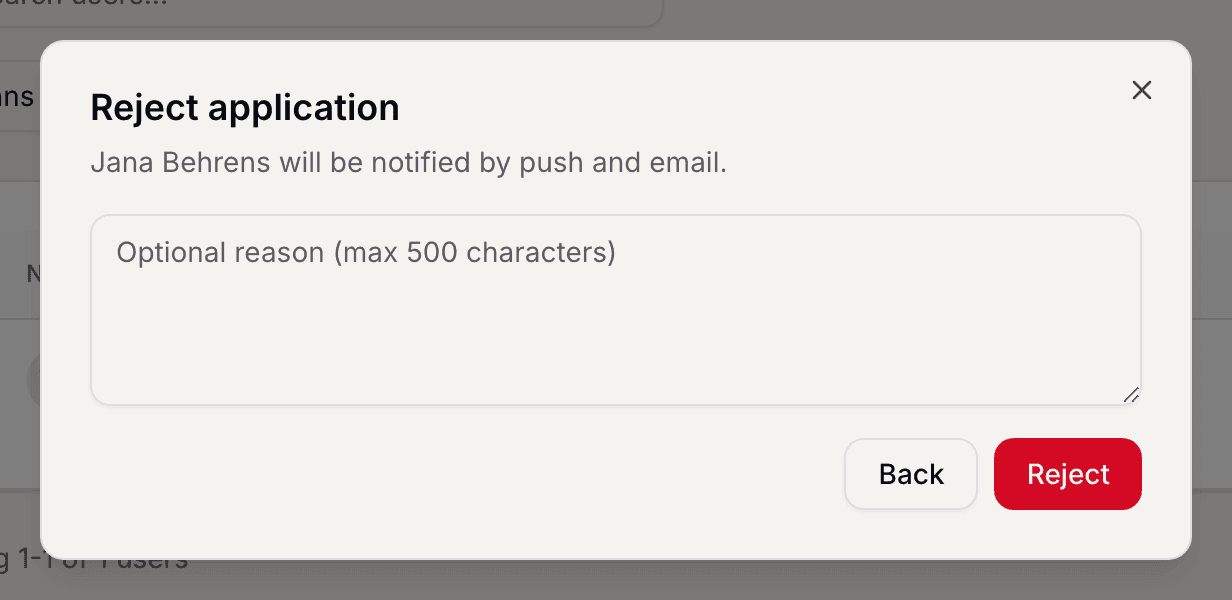
Rejecting a contract with the reason field
If you close New contracts, nothing changes. You can carry on later.
If you do not want to approve at all, switch automatic approval on:
- Open the space settings. In the app Setup leads there through Presence and Public page; on the web the page sits under Settings and Space.
- Flip the switch Anmeldungen automatisch bestätigen (approve sign-ups automatically). It takes effect immediately, without saving.

The switch for confirming sign-ups automatically
For single plans it sits in the plan itself: open the plan under Plans and flip Approve sign-ups automatically. New plans without a base fee have it on, all others off. Plans that existed before 17 October 2026 stay as they were.
If your space has doors, each row shows Unlock doors with a tick per door. Preselected are the doors behind the area where the person has a fixed desk or books, and the doors most people on the same plan have. If Selfdesk knows nothing about either, all doors are preselected. Untick what does not fit; Confirm grants exactly the ticked doors. Keys stay a decision per person and can be changed later under the member. You set which areas lie behind a door on the door itself.
When a company wants to pay by bank transfer
If your space takes card or direct debit only, a company can ask at sign-up whether it may pay by transfer instead. Its message arrives in the inbox, and the contract waits under New contracts, even if you otherwise confirm sign-ups automatically. The row says that the company wants to pay by transfer.
- Pays by transfer confirms the contract and lets this member pay by transfer: they book without card or direct debit, nothing is collected at the monthly close, and the invoice arrives for transfer.
- Reject ends the application like any other. The person can then sign up again with card or direct debit.
What applies here
- Approval takes the start date exactly as the member asked for it, even a date in the past. There is no way to approve and shift the date. If the date does not fit, reject.
- There is no cap on new members. One more paying member raises your next Selfdesk invoice by one unit; nothing is blocked.
- Rejected contracts are not gone. They sit in the Past tab once you switch on Show rejected.
- Members you create yourself or import from a list need no approval. Your upload is the approval. See Import members.
- An approved contract that starts in the future sits in the Upcoming tab.
When it does not work