Create desk areas and desks
Areas group desks. A desk belongs to at most one area, and an area can sell seats instead of individual desks.
Desks are the first start task: without a desk nobody can book. Areas are optional and sort your desks, for example by room or by floor.
Create the areas first, then the desks. That way you can put each desk into its area while you create it.
- Open Setup and, in the Desks, rooms and doors section, the row Desk areas.
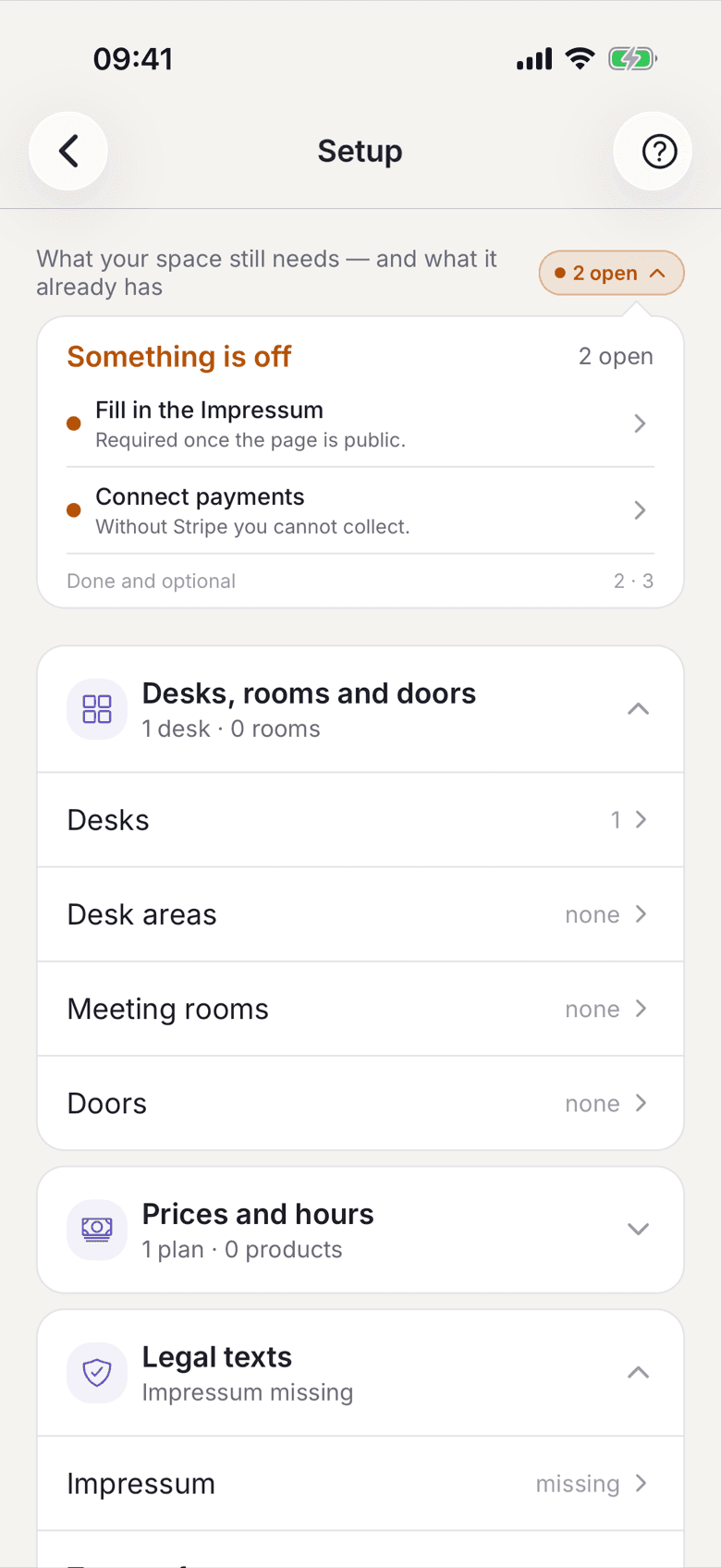
The Desks, rooms and doors section with the Desks and Desk areas rows - Create an area and give it a name. Description, image, floor and tags are optional.
- If the area should not show individual desks but only count seats, switch on seat booking and enter the number of seats.
The number of seats is its own number, not a count of the desks in the area, because a sofa or standing places have seats but no desks. If you archive, move or restore desks of this area, the admin asks "Adjust the zone's seats?" and shows the suggested number. Without your yes the number stays as it is. It can't go below one seat.
In the app
The switch is called Area Booking, the field below it Seat Capacity.On the web
The switch is called Book a seat instead of a desk, the field below it Total seats. - Go back to Setup and open the row Desks.
- Create a desk: Desk name, Area and optionally a Photo. The field Location (optional) describes where it stands, for example
Gebäude B, Raum 1. Save with Save. The new desk then stands highlighted in the list, and a message with View opens it.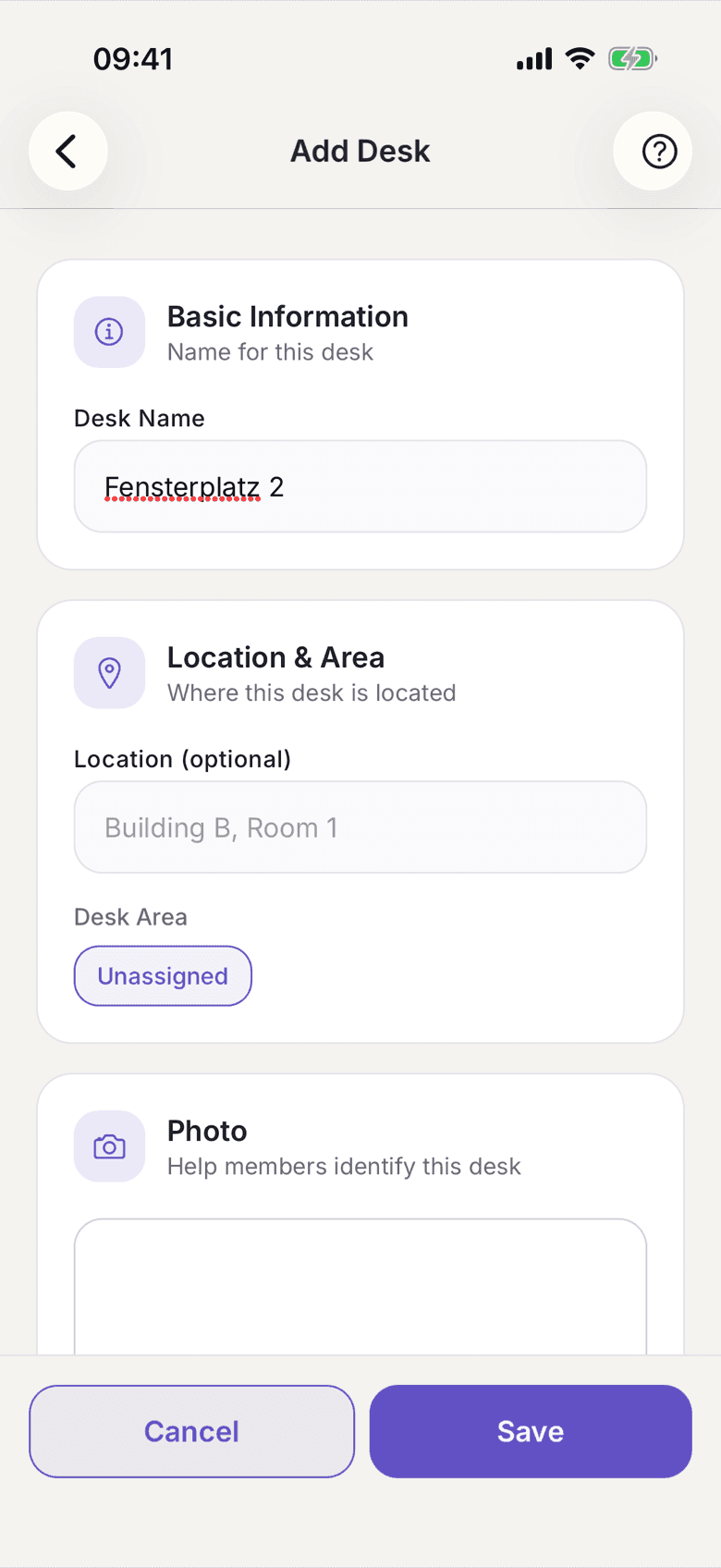
Add desk form with desk name, location and area - Repeat this for every desk. Each desk is given a sticker code automatically, and you will find that code again on the QR sheet.
Several desks at once
- Open the row Desks.
In the app
Tap + Desk and, at the top, Add several at once.On the web
Click Add several. - Choose the Desk area they all go into.
- Under What should they be called? you choose between two ways:
- Number them: enter a Prefix and How many.
Fand10give F1 to F10. If the area already has F1 to F3, it carries on at F4, and the preview names the last existing one. Leading zeros of the existing ones stay (afterHG 07comesHG 08). Without a prefix you get plain numbers. - Type names: under Names, write one desk per line.
HG 01–08stands for HG 01 to HG 08; with a hyphen (HG 01-08) it is the same. The leading zeros stay. Ranges and single names can be mixed, empty lines do not count.
- Number them: enter a Prefix and How many.
- Preview lists every name that will be created. Struck through are the ones that are skipped: names that already exist in the area and names listed twice in the text.
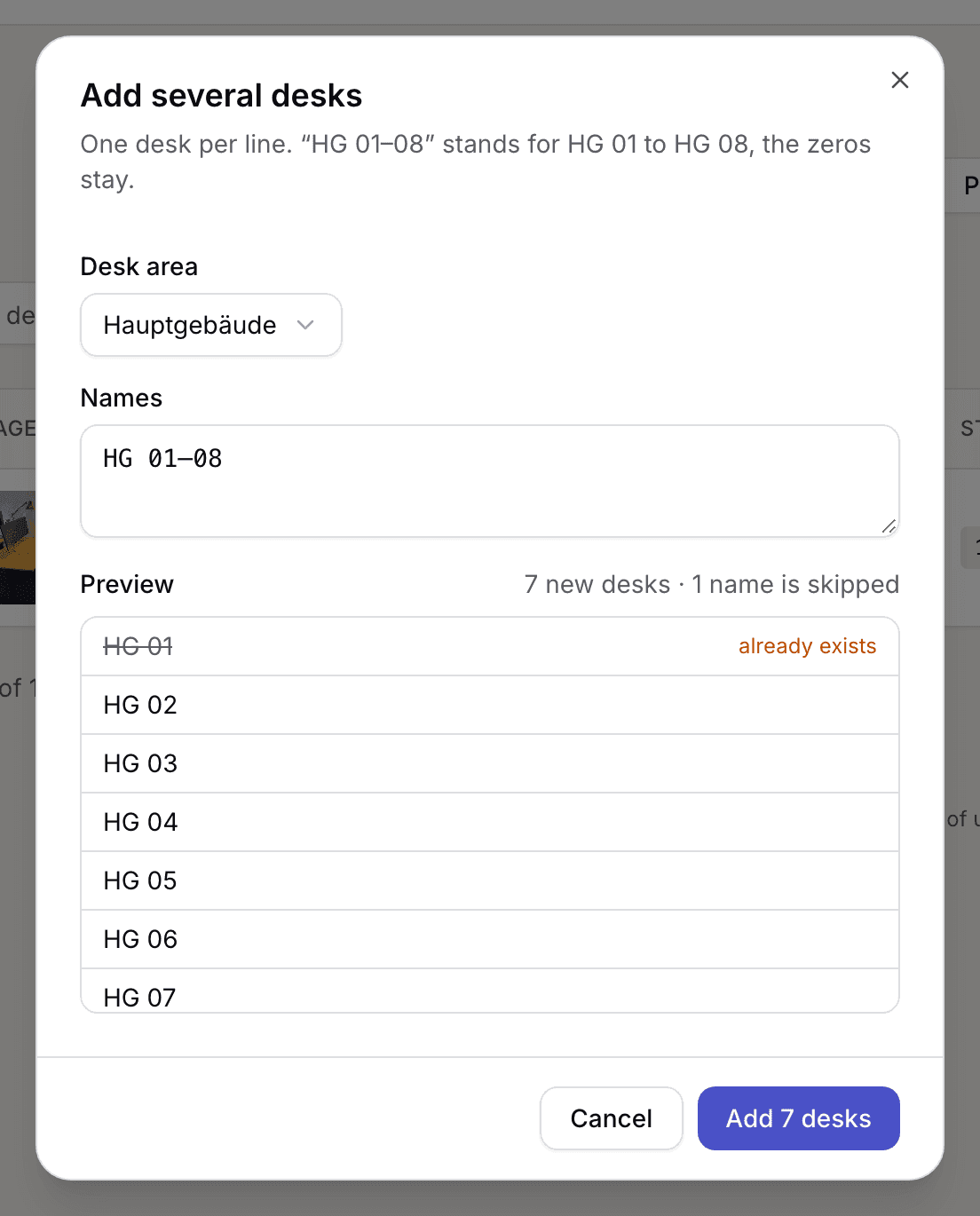
Dialog Add several desks with the text field and the preview of the names - Add them with the button below, which names the number of new desks. Photo and location go on each desk afterwards.
Rename or archive several desks
In the app
In the list of desks, tap the tick icon Edit several desks at the top and choose the desks.On the web
Tick the desks in the list. Rename desks and Archive desks appear at the top.- Rename: Enter a prefix and the first number. The desks are then named in the order of the list:
Fand1give F1, F2, F3 and so on. - Archive: After one confirmation all chosen desks are archived, as one by one.
What applies here
- An area with seat booking hands out seats, not desks. Its desks cannot become anybody's fixed desk. See Anonymous seating areas.
- If you offer day tickets, creating an area asks May guests with a day ticket sit here? The answer starts at yes. Guests sit at a free desk there, never at one assigned to someone. You change it later under Online booking for guests.
- You can add up to 200 desks at once. Names are compared with the desks in the chosen area; archived desks do not count, their names are free again. Upper and lower case do not matter,
HG 01andHG 1are two names. When numbering, only names made of exactly the prefix and a number count:F 9is not an F desk,F9is. - An area that still holds desks cannot be deleted. Move the desks to another area first, or remove them.
- A desk with bookings or contracts in its history can only be archived, not deleted for good. Archived desks are no longer bookable; existing future bookings and fixed assignments stay.
- While your space is public it keeps at least one desk. See The last desk cannot be deleted.
When it does not work