Add products and change prices
A kiosk product has a gross price and its own VAT rate. A price change applies from the next purchase, never retroactively.
The kiosk is your own catalogue: coffee, snacks, whatever else you want to bill. Every product has a gross price and its own VAT rate. That is what separates the kiosk from your plans, where the rate belongs to the whole space.
Before you start: if your space uses card payment, a member needs a stored payment method before they can buy in the kiosk. If your space uses bank transfer only, that condition does not apply and everything runs over the kiosk invoice.
- Open Kiosk. In Setup the same thing is called Kiosk products, in the
Prices and hours section.
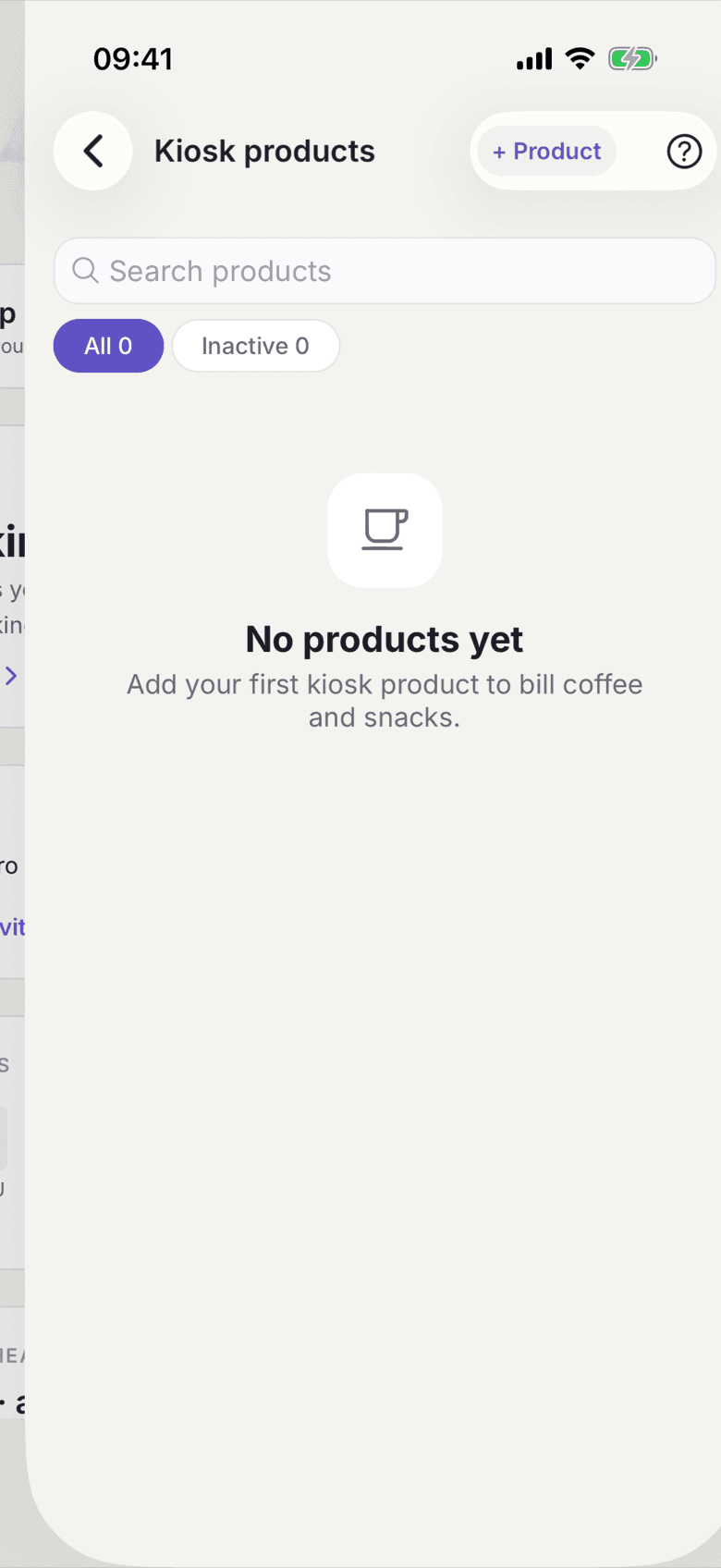
Kiosk list with the existing products - Tap + Product and enter the Name under Basic info.
- Enter the Gross price under Price & VAT, meaning the amount someone
pays at the shelf. The split into net and tax is shown live underneath.
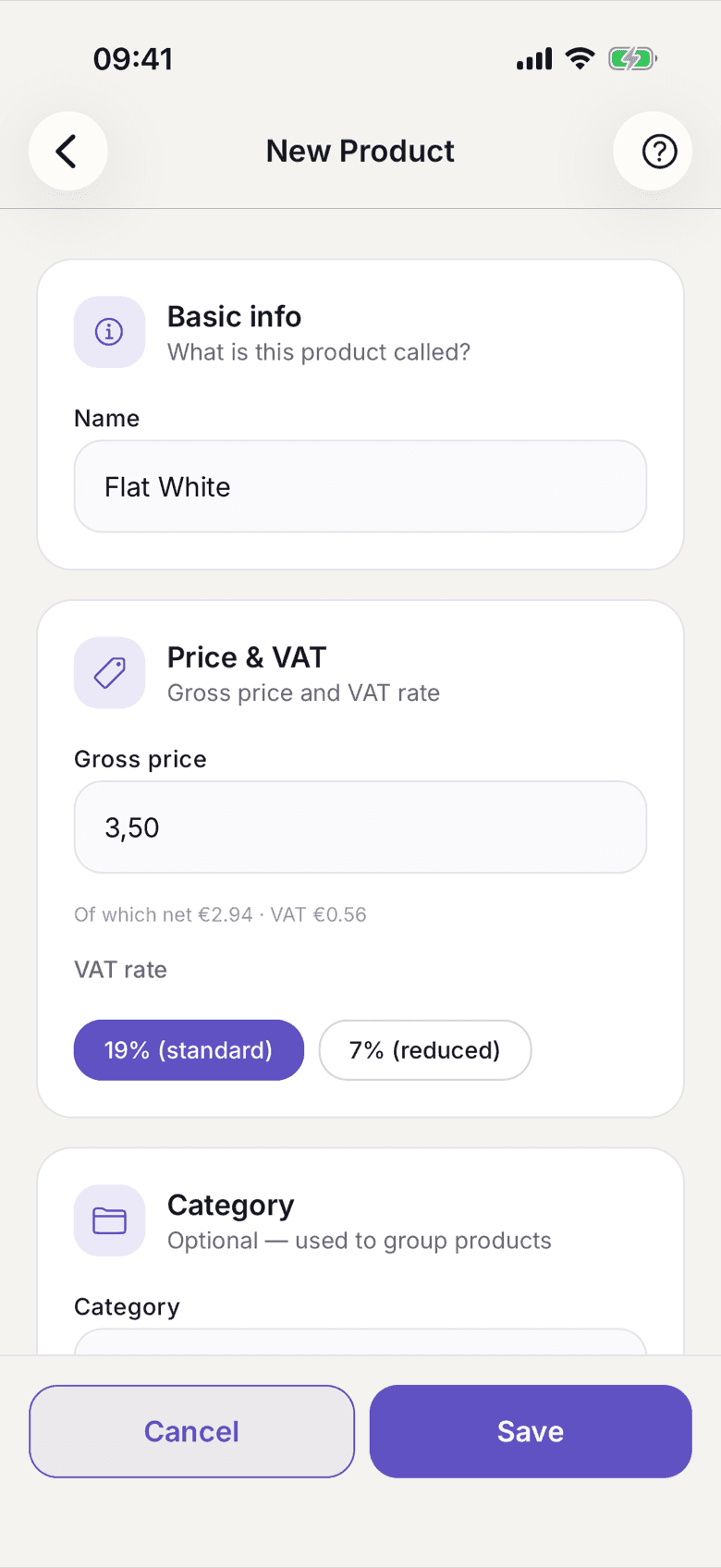
Price field with the live split underneath - Pick the VAT rate. The options are 19% (standard) and 7% (reduced). As a small business there is nothing to pick, and the amount you entered is the final price.
- Optionally set a Category and an Icon. Both only sort and illustrate what your members see.
- Leave Active switched on and save. Only active products appear in the kiosk.
- To change a price, open the product, enter the new Gross price and save.
What applies here
- The price applies from the next purchase. Purchases already made keep the name, price and VAT rate of the moment they were bought.
- Change a price mid-month and old and new purchases appear as separate invoice positions. They really were bought at different prices.
- Identical purchases are merged into one position with a quantity, as long as product, price and rate match.
- A kiosk invoice may carry several VAT rates. The tax is shown once per rate. See Gross price.
- Kiosk prices never appear in the price list of your plans. This is shop stock, not a contract term. See Price list.
- A product that has been bought can no longer be deleted, only deactivated.
When it does not work