Lock a door
Locking goes through the same entry point as opening. The button is hidden when the lock already reports locked.
Locking is a plain button, not a slider. An accidental lock costs one more unlock, an accidental unlatch leaves a door standing open. You reach locking through the same entry point as opening, which is Open door.
Before you start: you need door access for that door yourself. A role alone is not enough.
- Tap Open door. In the app that is the card on the home screen, on the web
the entry in the top bar or sidebar.
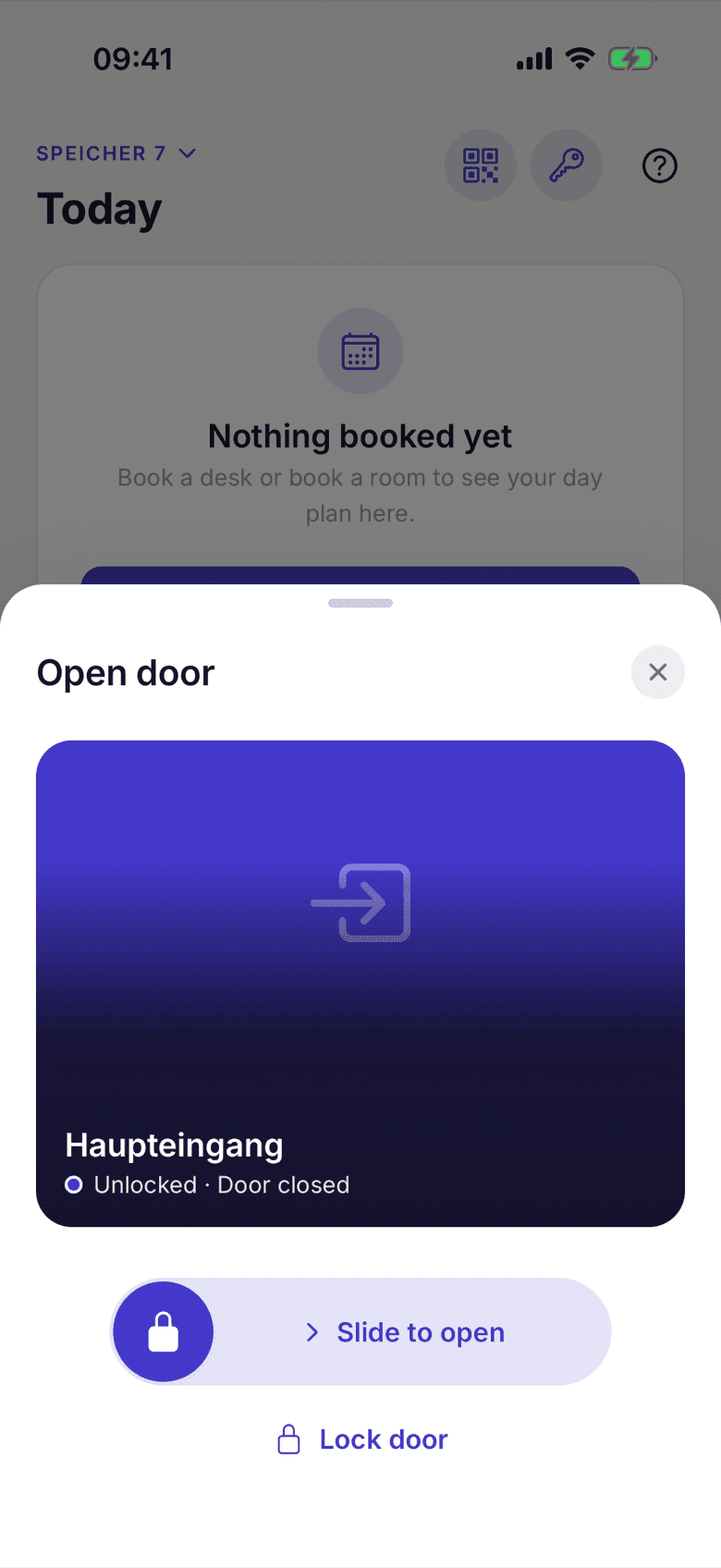
Door list with the lock state per door - Pick the door. Underneath it, the Lock state line reads Locked, Unlocked or Motor blocked, together with Door closed or Door is open.
- Tap Lock door. On the web the button reads Lock and asks back with
Lock door.
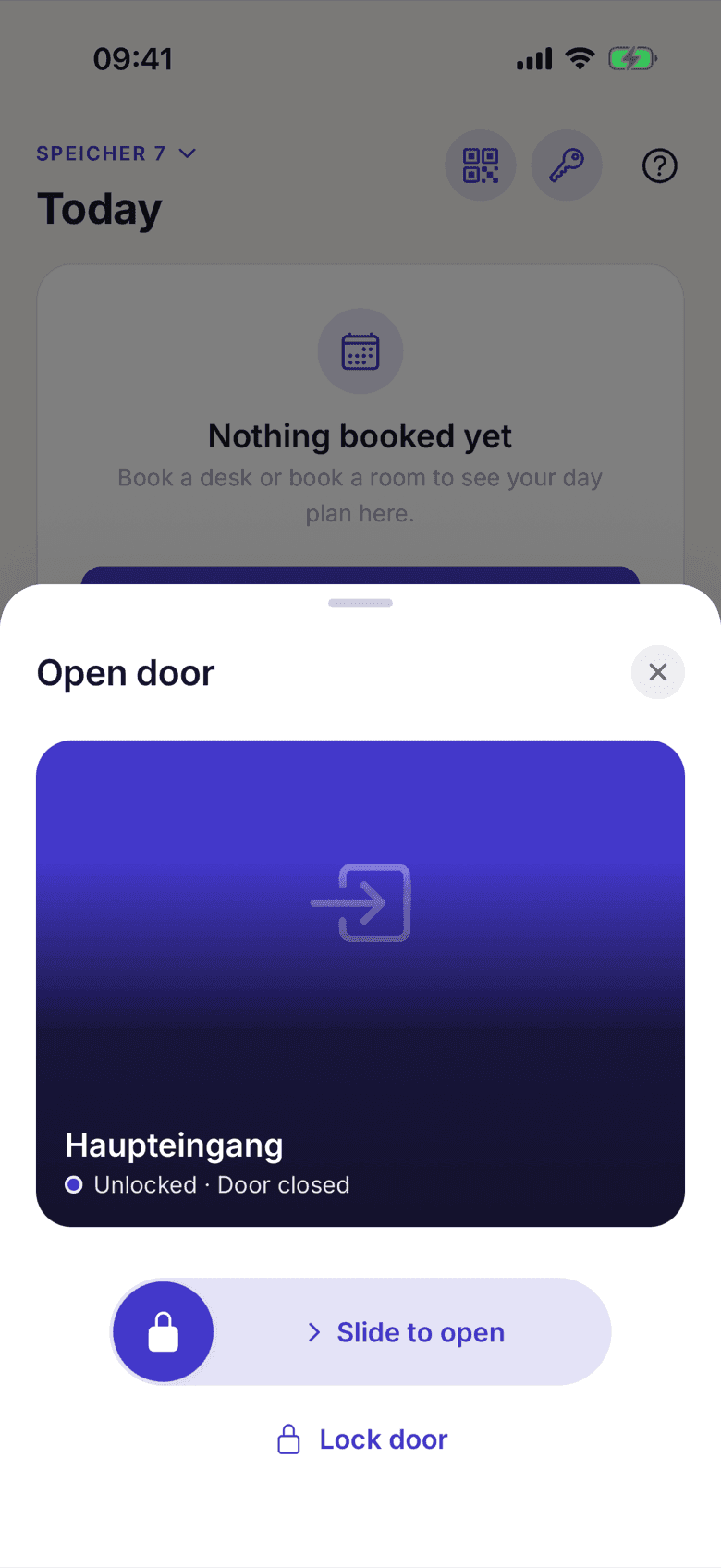
The Lock door button under the lock state - The button reports Locked back and the state line flips to Locked.
What applies here
- If the lock already reports Locked, the button is hidden. There is nothing to do.
- If a door sensor reports Door is open, the button is disabled. A bolt against the frame blocks the motor.
- Without a door sensor the door is assumed shut and locking proceeds with no hint. If it really is ajar, Nuki answers Motor blocked, and that is what the app shows.
- Two actions in quick succession do not work. The app answers Hold on — this door was just used.
- A failed state read never blocks opening. The state line turns grey and the slider stays usable.
- Locking is logged like opening, successes and failures alike. See Door log: 30 days, not an attendance record.
When it does not work