Store a payment method
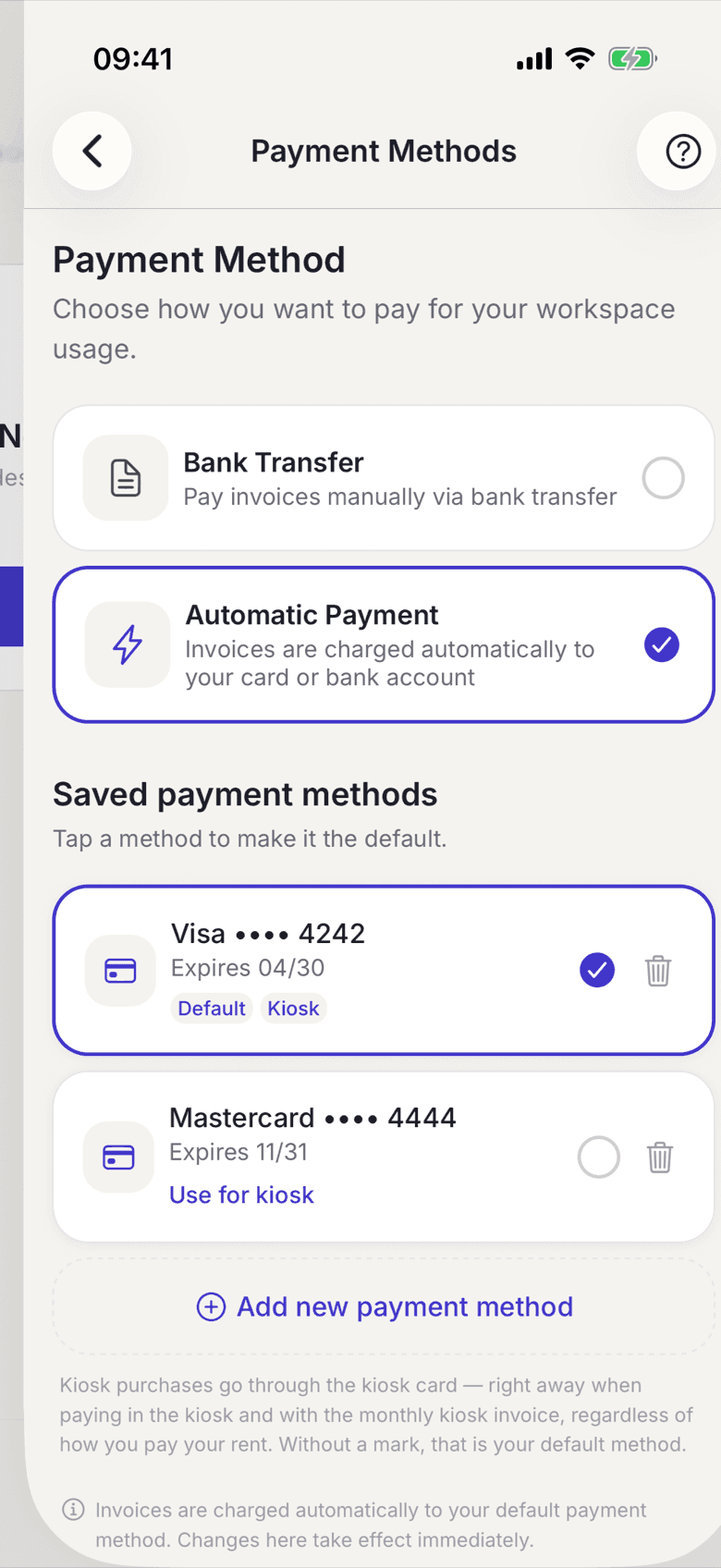
Store a card or bank account once. After that every change takes effect immediately. There is no save button.
You need a stored payment method when your space collects by card or direct debit, and for purchases in the kiosk. If your space bills by bank transfer, it is optional.
If your space does not offer card payment, the screen does not appear at all.
In the app
- In your profile open Payment method.
- Tap Add new payment method.
- In the payment sheet choose card or bank account. Depending on your device, Apple Pay or Google Pay are offered there too.
- Close the sheet. The method appears in the list.
On the web
- In your profile open Payment methods.
- Click Add payment method.
- Enter the details in the Stripe window and complete it.
Set a default and delete
Tap a method to make it the default. That takes effect at once, with no saving. To remove one, tap the bin and confirm the prompt.
What applies here
- The screen is a setting, not a form. Every action takes effect on its own and immediately.
- Your card details live at Stripe, not at selfdesk. See Card details live at Stripe.
- If your space offers both, you choose between Bank transfer and Automatic payment on the same screen.
- For the kiosk you can mark a separate card, see Set a kiosk card.
When it does not work