Create your account and confirm your email
One account covers every space. You only have to confirm your email address when you sign a contract.
With a selfdesk account you can look at spaces, pick a plan and enter your billing address. Only signing the contract requires a confirmed email address.
How to create an account
- On the sign-in screen tap Create an account.
- Enter Full Name, Email and a Password. The password needs at least 8 characters.
- Tap Create Account.
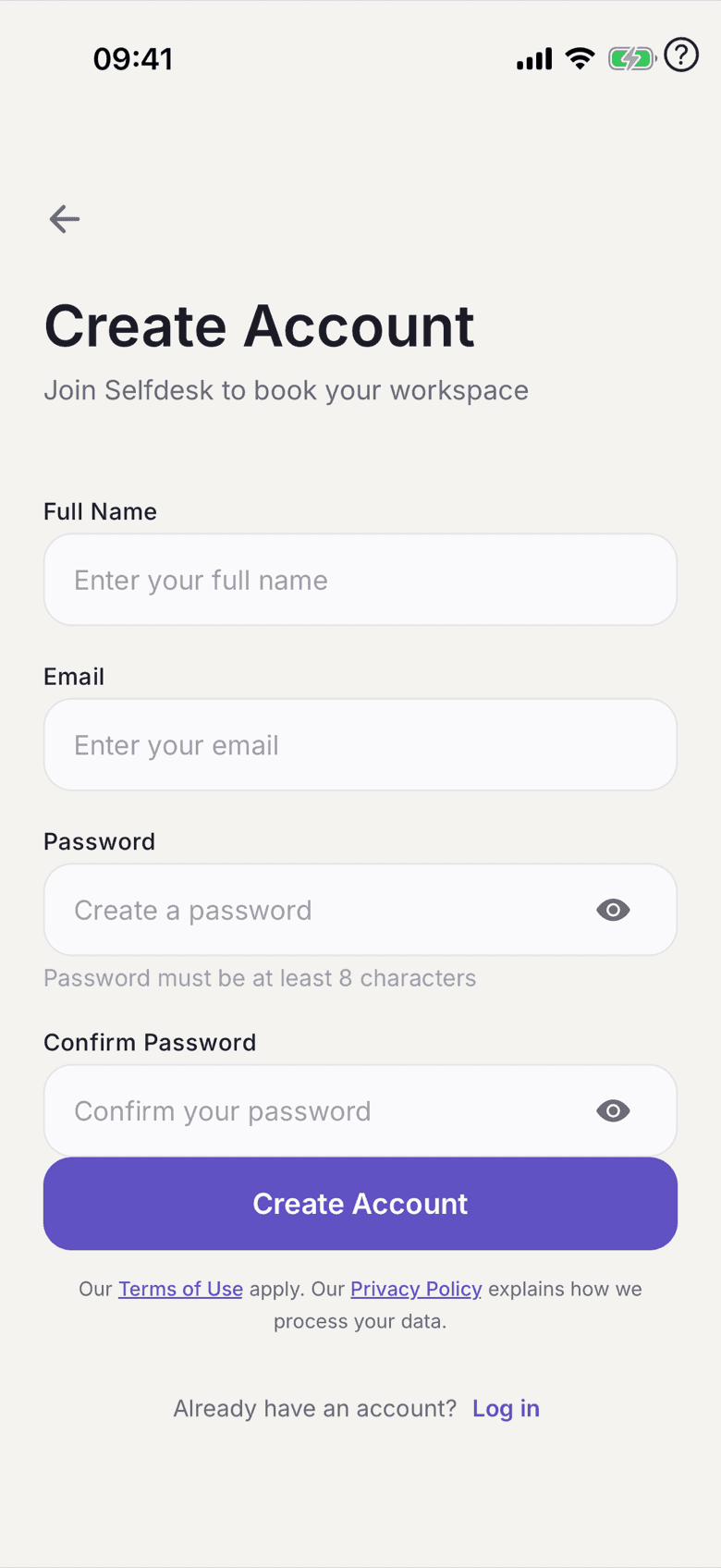
Instead of a password you can choose Continue with Apple or Continue with Google. You then need no password and your address counts as confirmed.
How to confirm your email address
- Open the email you receive after registering.
- Tap the confirmation link.
- Go back to the app. It checks in the background whether the confirmation has arrived and moves on by itself.
If you are in checkout and not confirmed yet, the checkout button is replaced by Verify email address. It takes you to the confirmation screen, which also holds Resend verification email.
What applies here
- Choosing a plan and entering your address work without confirmation. Only checkout is blocked.
- Your profile covers every space, your contract and your role belong to one space. See One account, several spaces.
- After signing in with Apple or Google you have no password at first. You can set one later, see Change or reset your password.
When it does not work