Change your plan
A change takes effect on the 1st of the next month. Until then you can take it back.
You pick the new plan yourself. The running month stays on the old plan, the new one applies from the 1st of the next month.
In the app
- In your profile open My Plan.
- Under Your Contract tap the card with your plan.
- Under Select New Contract pick the plan you want.
- Tap Confirm Change.
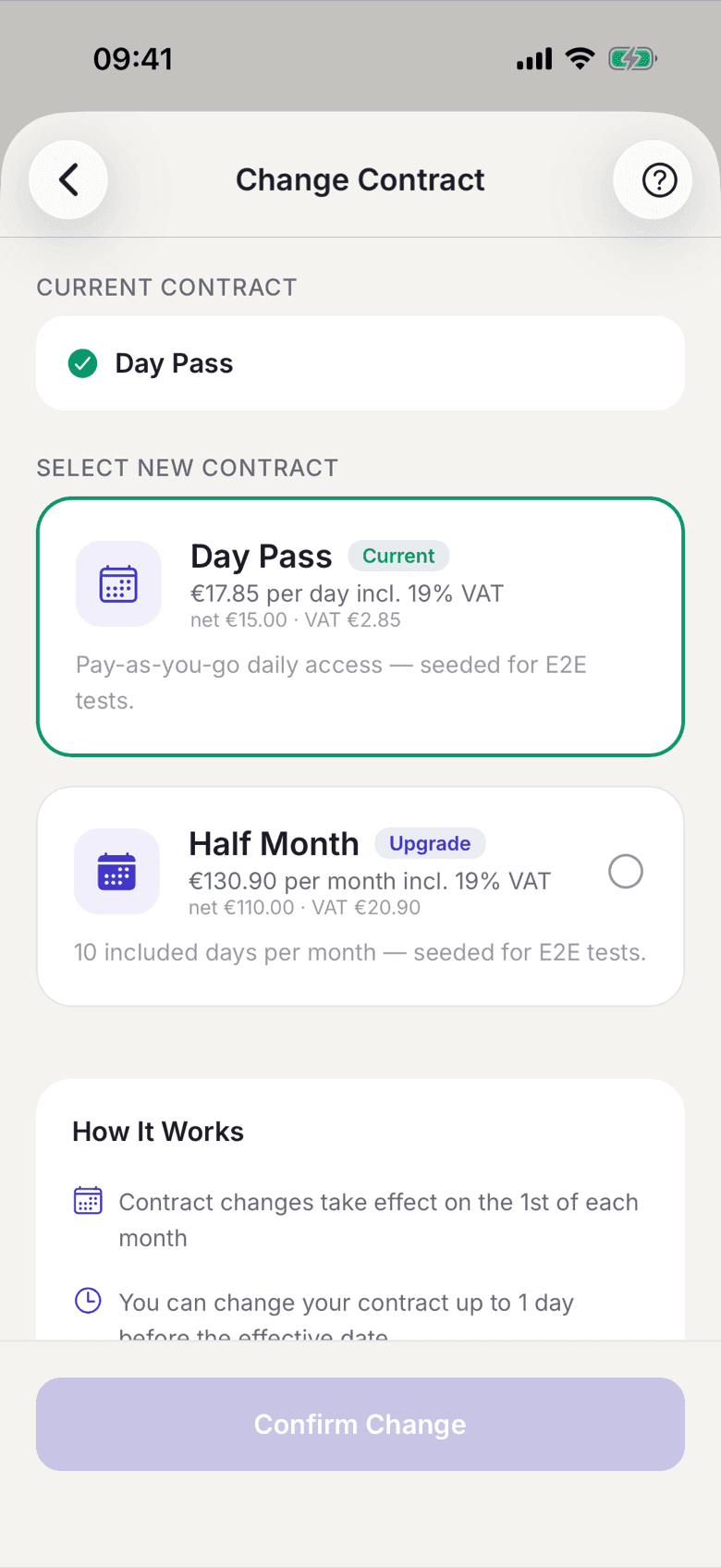
The scheduled change then appears as Contract Change Scheduled on the same screen. Cancel Change takes it back.
On the web
- In your profile open My Plan.
- Click the Current Plan card.
- Pick the plan you want.
- Click Confirm Plan Change and confirm the dialog.
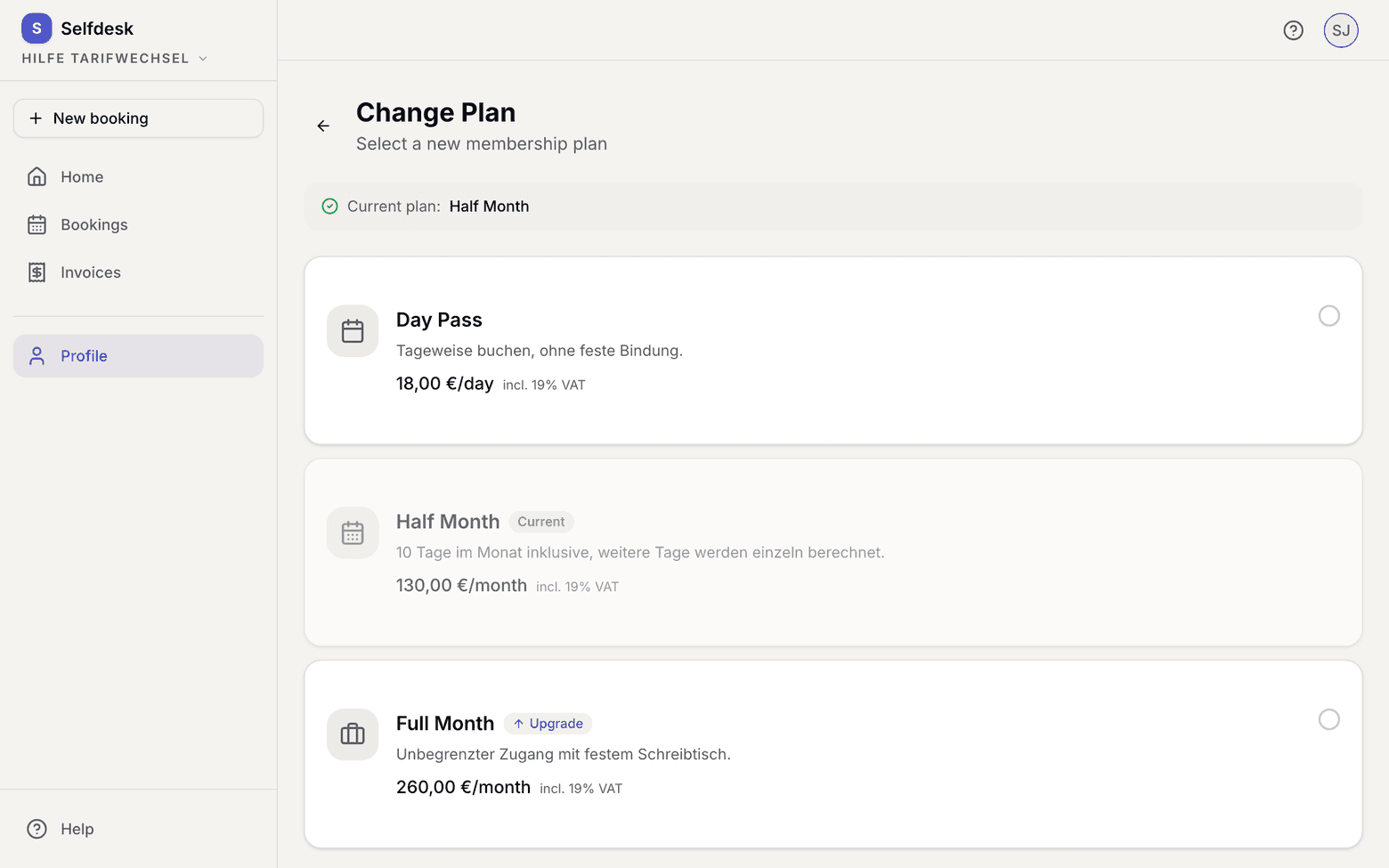
The scheduled change then appears as Pending Plan Change on the plan page. Cancel Plan Change takes it back.
What applies here
- Changes only ever take effect on the 1st of the next month. See A change applies on the 1st.
- As long as the change is not active you can take it back or replace it with another one.
- You receive a PDF about the change, see Find your contract documents.
- If you hold an individual price, the app warns you before the change. You only get it back if your space assigns it to you again. See Your space assigns individual prices.
When it does not work