Create a series
A booking becomes a recurring appointment, for a desk or a room. The preview shows beforehand which dates are free and what they cost.
A series is a booking with a repetition rule, for a desk or a room. You create it in the same flow as a single booking.
How to create a series
- Pick desk or room and the date, for a room the time as well, as for a single booking.
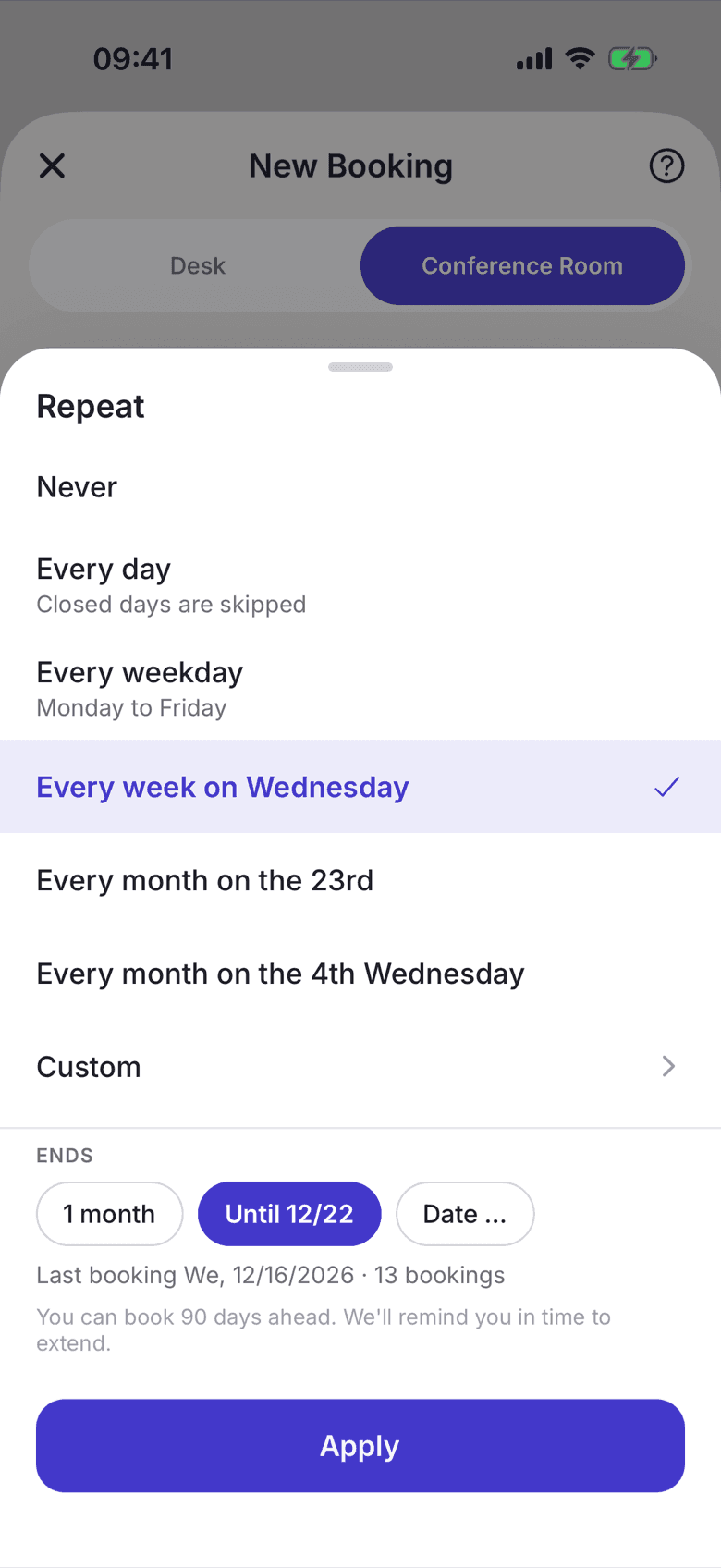
- Tap Repeat.
- Pick a rule. On offer are Every day, Every weekday, Every week on …, Every month on the … and Custom.
- Under Ends set an end date or a number of dates.
- Tap Apply. The rule then sits as a pill under your selection.
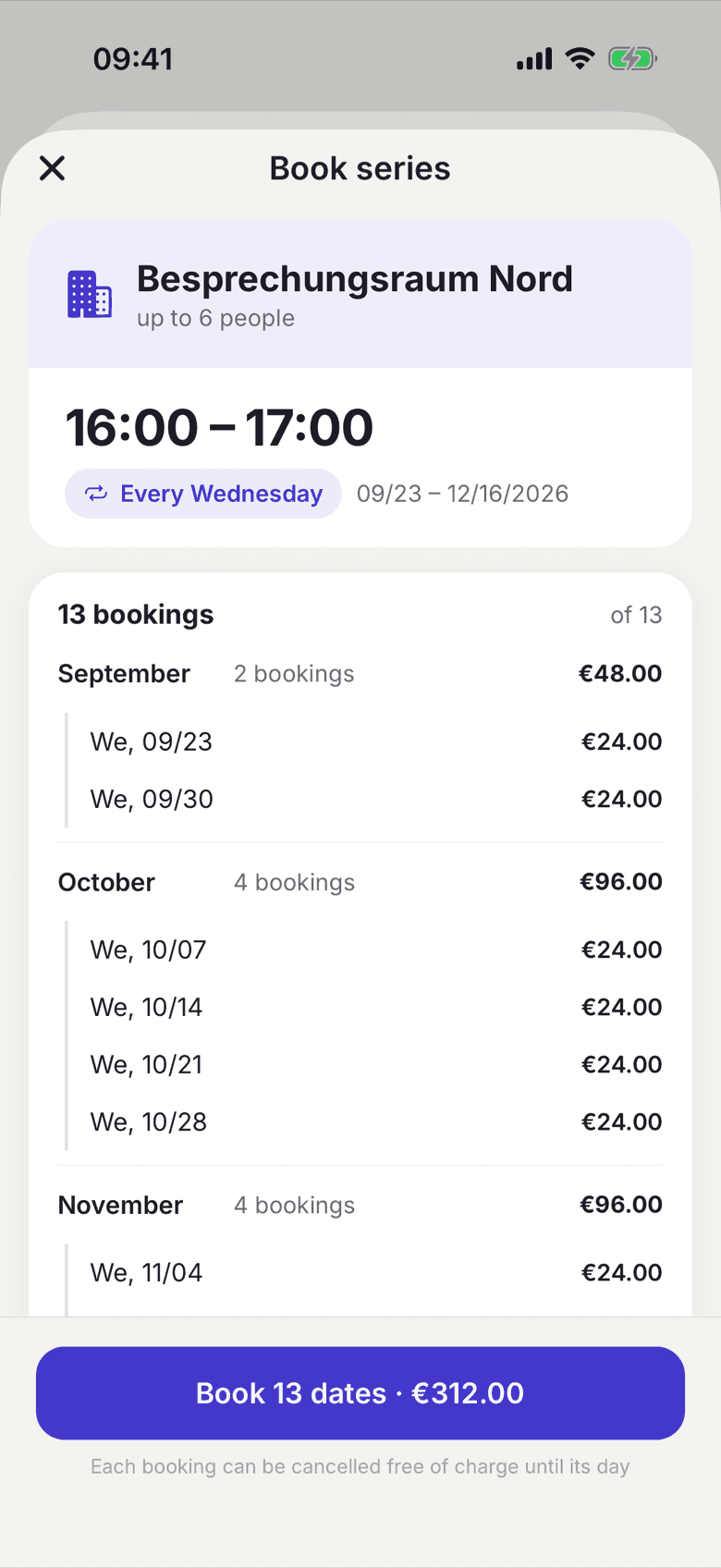
- Tap Continue. The confirmation lists every date and the cost per month underneath.
- Tap Book … dates.
What a series costs
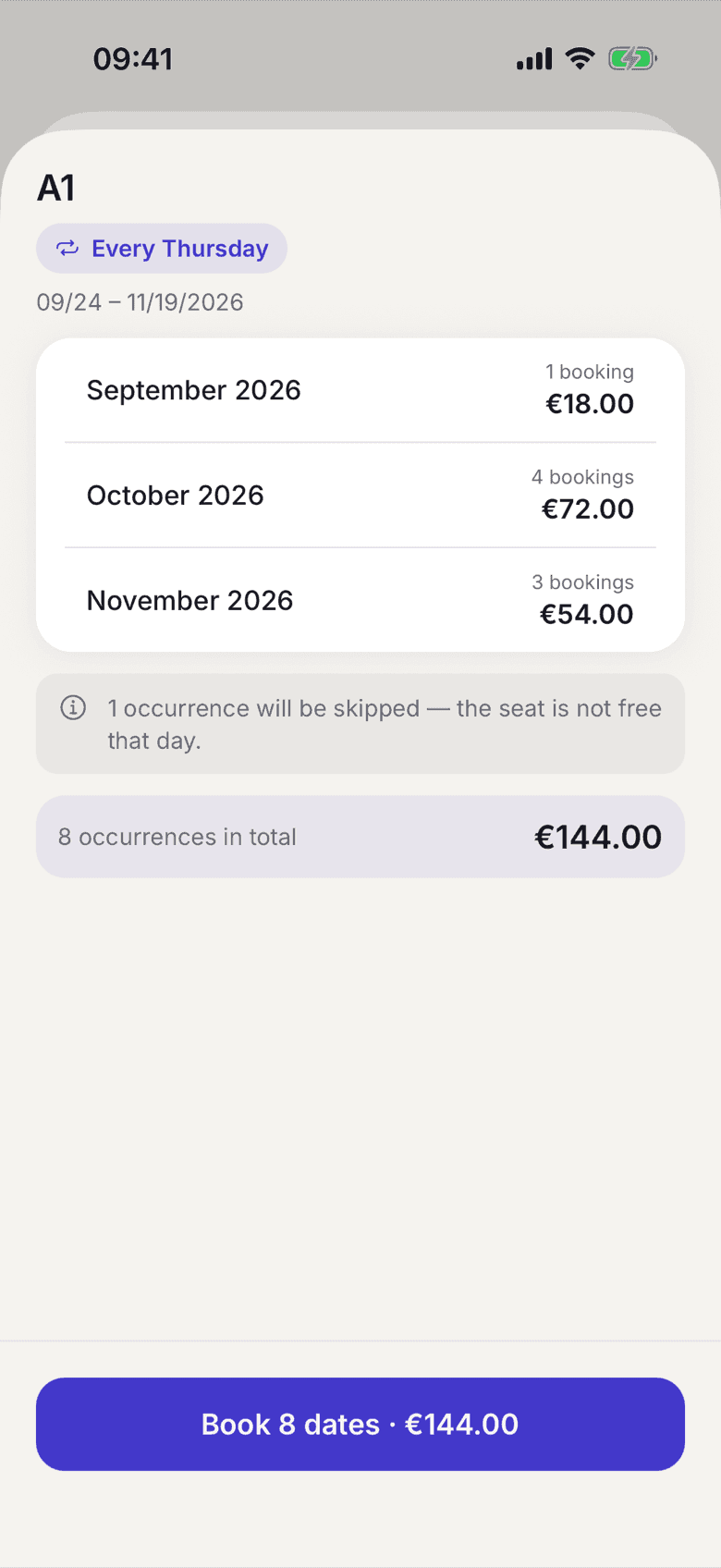
For rooms a series is often inside your allowance and costs nothing. For desks every date counts as a single day: from the allowance first, then at your plan's day rate. The confirmation names the total before you book.
Change a single date
Open the date and choose …. For a room series you find Edit and Cancel there, for a desk series Take another seat and Cancel. When cancelling, the app asks for the scope: This occurrence only, This and all following or Whole series. A date you changed individually stays as you changed it, even if you later change the whole series.
Move a single date
If you want to sit somewhere else on a single day, open the date and choose Take another seat. The list shows what is free that day. The other dates of your series stay as they are.
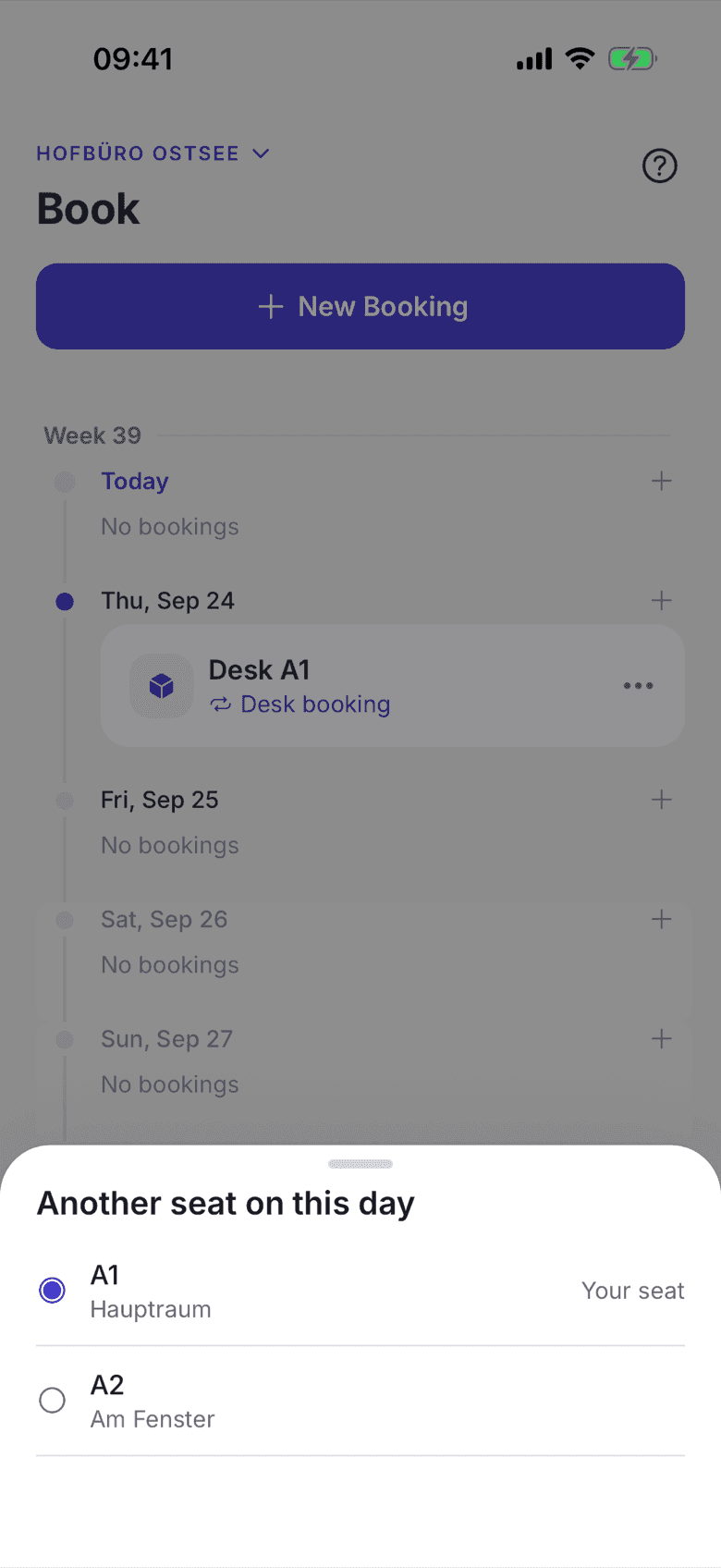
If the seat has been taken in the meantime, the app says so and your day stays where it was. That is what makes this different from cancelling and booking again: there the day can be lost entirely.
What applies here
- A series always needs an end. Without an end date or a count it cannot be created.
- It never reaches further than your space's booking window, see Booking window. An end that does not fit is refused, not quietly trimmed.
- Dates on closed or already taken days are skipped. The preview names them beforehand, and nothing is ever double booked.
- For desks a day is also skipped when you already have a desk that day or the desk belongs to somebody permanently.
- The series ends with your contract. The confirmation tells you so beforehand.
- The costs in the preview follow your plan as it is today. Each date is billed in its own month, from your allowance or at your plan's rate.
- Before the last date you get a reminder with the offer to extend.
- Every date can be cancelled free of charge up to its own day.
- You open a series with all its dates, Extend and End series in the app through one of its dates: tap it in the Book tab, then View series.
When it does not work