Print the poster and the QR sheet
The QR sheet carries one code per desk, the poster one code for your space. selfdesk builds both as a PDF.
Two printouts, two jobs. The QR sheet gives you one sticker per desk, which books that seat for today. The poster goes up once in the room and explains how to become a member in the first place.
- Open the desk list. In the app Setup leads through Desks, rooms and doors to the row Desks; on the web it sits in the sidebar under Desks.
- Build the sheet with the desk codes.
In the app
Tap Print QR sheet in the header. The sheet is shown first, then you hand it on with Share or print the sheet. “Print” in the share menu is where AirPrint lives.On the web
Click Print all QR codes. If you tick individual rows first, the button reads Print QR Codes and the sheet holds only those desks.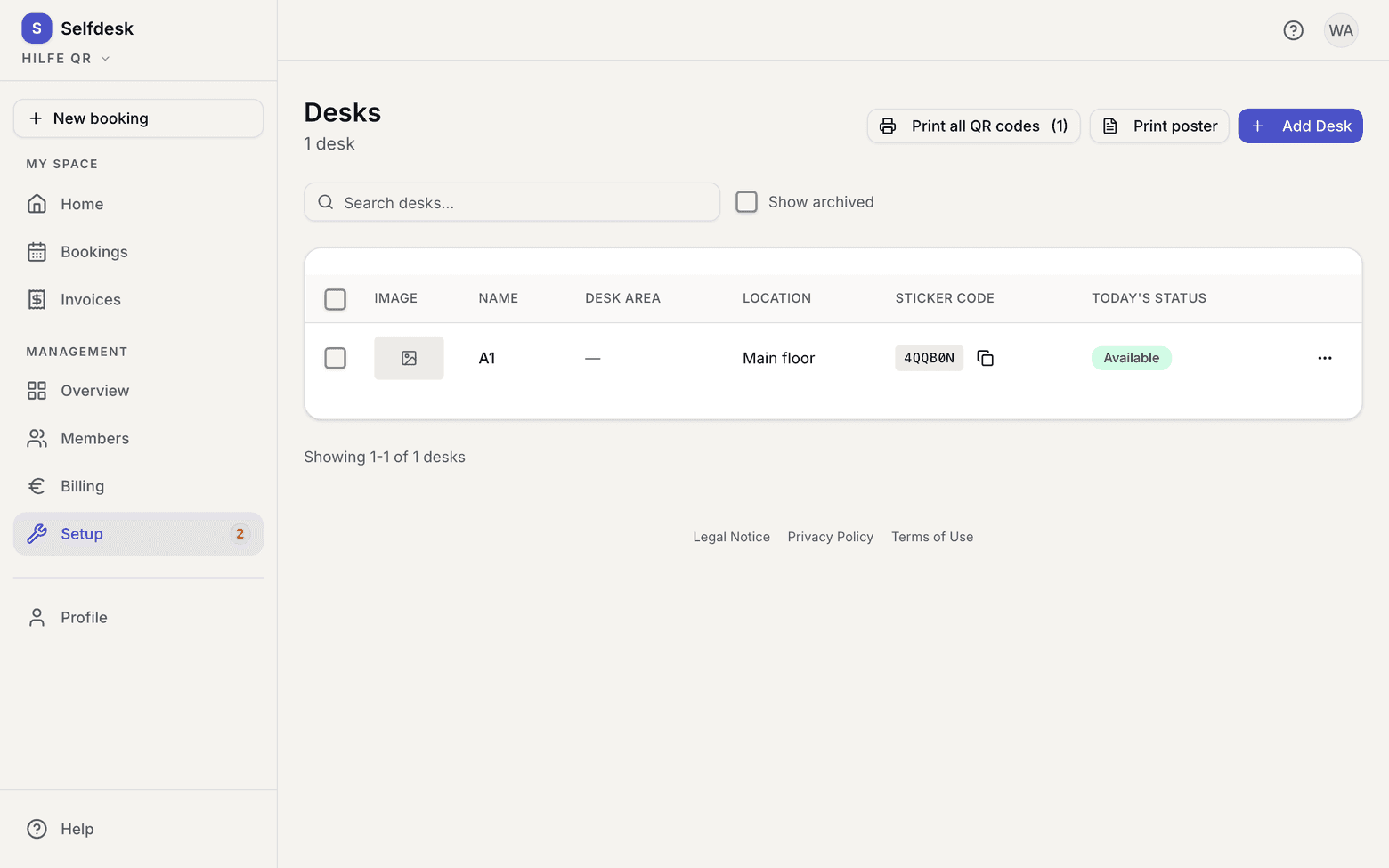
Desk list with the button for printing the QR codes - Cut the sheet along the lines and stick each code on its desk.
- Build the poster.
In the app
Open the Poster from the header of the desk list, then hand it on with Share poster.On the web
Click Print poster in the header of the desk list. - Put the poster up once, at the entrance or in the kitchen.
What applies here
- A card on the QR sheet carries the sticker code, the name of the desk, the name of its area and one line asking the reader to scan. Desks without an area get no area line.
- The code on the desk books that seat. The code on the poster leads to the public page of your space, which is what somebody without an account needs.
- Archived desks are not on the sheet.
- A code you have already stuck on stays valid. selfdesk still accepts the codes printed before the short sticker code existed.
When it does not work