Scan the QR code on a desk
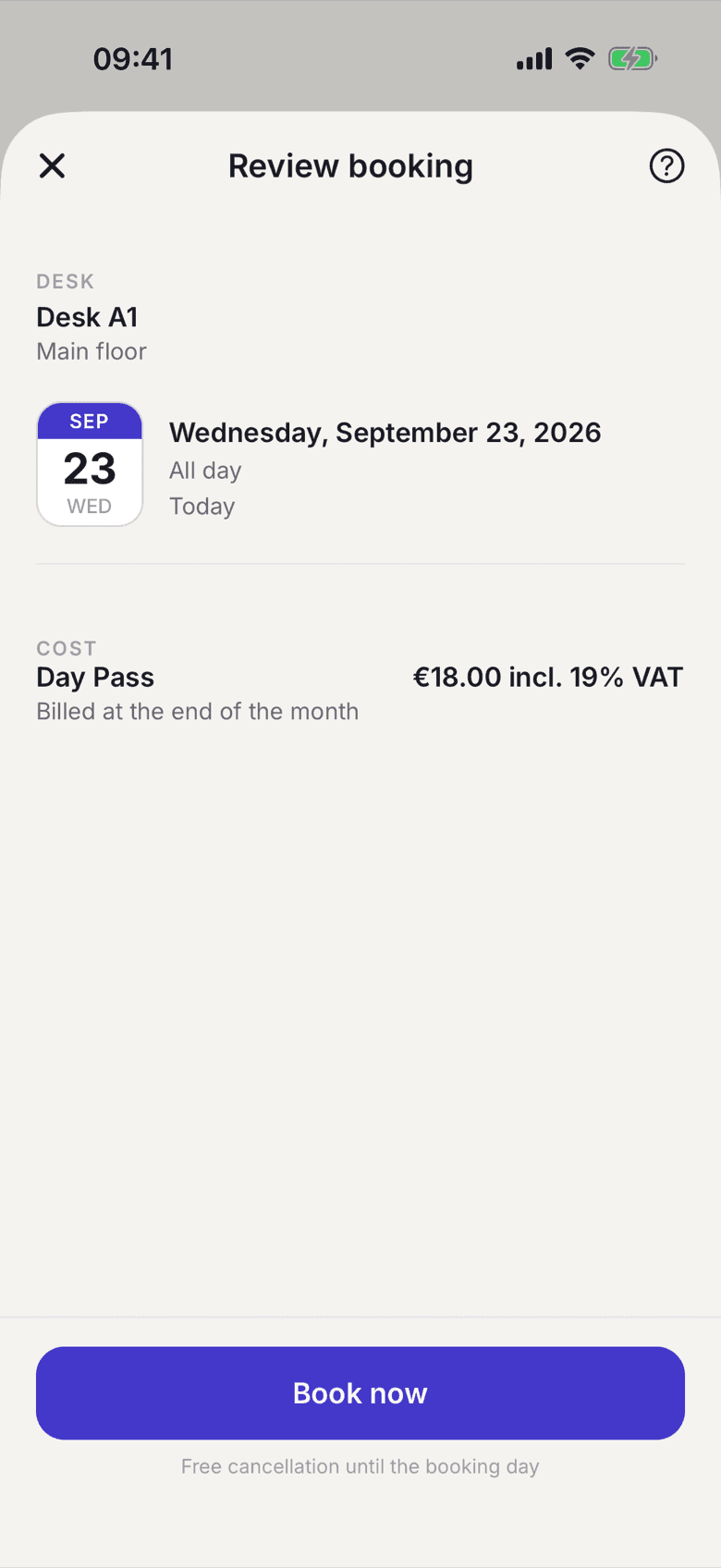
The sticker on the desk takes you straight to the booking confirmation for exactly that desk.
Every desk carries its own code. When you scan it, the booking already has the area and desk filled in.
How to scan
- On the home screen tap the scan icon at the top. You also find the scan row in the booking flow above the desk list.
- Point the camera at the sticker.
- Check the confirmation. Desk, area and date are already filled in.
- Tap Book now.
You can also scan the sticker with your normal camera app. If selfdesk is installed, the app opens directly. If it is not, you land on a page that names the desk and the space and lets you sign in.
What applies here
- A scan never books by itself. The confirmation always opens first.
- If you hold a fixed desk, the app says so instead of offering another desk. The scan for booking does not appear at all if your plan needs no check-in.
- If the code sits in an open area, you book a seat in the area instead of the desk.
- If the desk is already taken, the app says so and opens the desk picker.
- If you scanned while signed out, the scan is not lost. After signing in you land at the desk you scanned.
- There is no QR code on a door. Doors are opened separately, see Check in and open doors.
When it does not work